
When managing a multilingual website, keeping track of who made a change and when it happened is crucial for maintaining a healthy workflow.
MultiLipi provides a comprehensive Project Logs dashboard (often referred to as your Activity Log). This feature acts as a detailed, real-time record of all actions, updates, and changes made within your project, giving you complete visibility over your localization efforts.
The Benefits of Tracking Your Activity
Why project logs matter for your team.
Actively monitoring your project logs provides several major advantages for teams and solo developers alike:
Enhanced Accountability
With multiple team members or freelance translators working in the same project, the activity log shows exactly who triggered a specific event (e.g., who added a new language or changed a setting).
Rapid Troubleshooting
If a setting suddenly breaks or a translation goes live prematurely, you can check the logs to pinpoint the exact date, time, and environment of the change.
Security & Peace of Mind
The logs record critical account actions, such as user sign-ins, ensuring you always know who is accessing your MultiLipi workspace.
Step-by-Step: How to Access and Read Your Logs
Viewing your activity is simple and accessible.
Viewing your activity is simple and accessible directly from your main workspace.
Access your Dashboard
Log in to your MultiLipi account to access your main dashboard.
Navigate to Project Logs
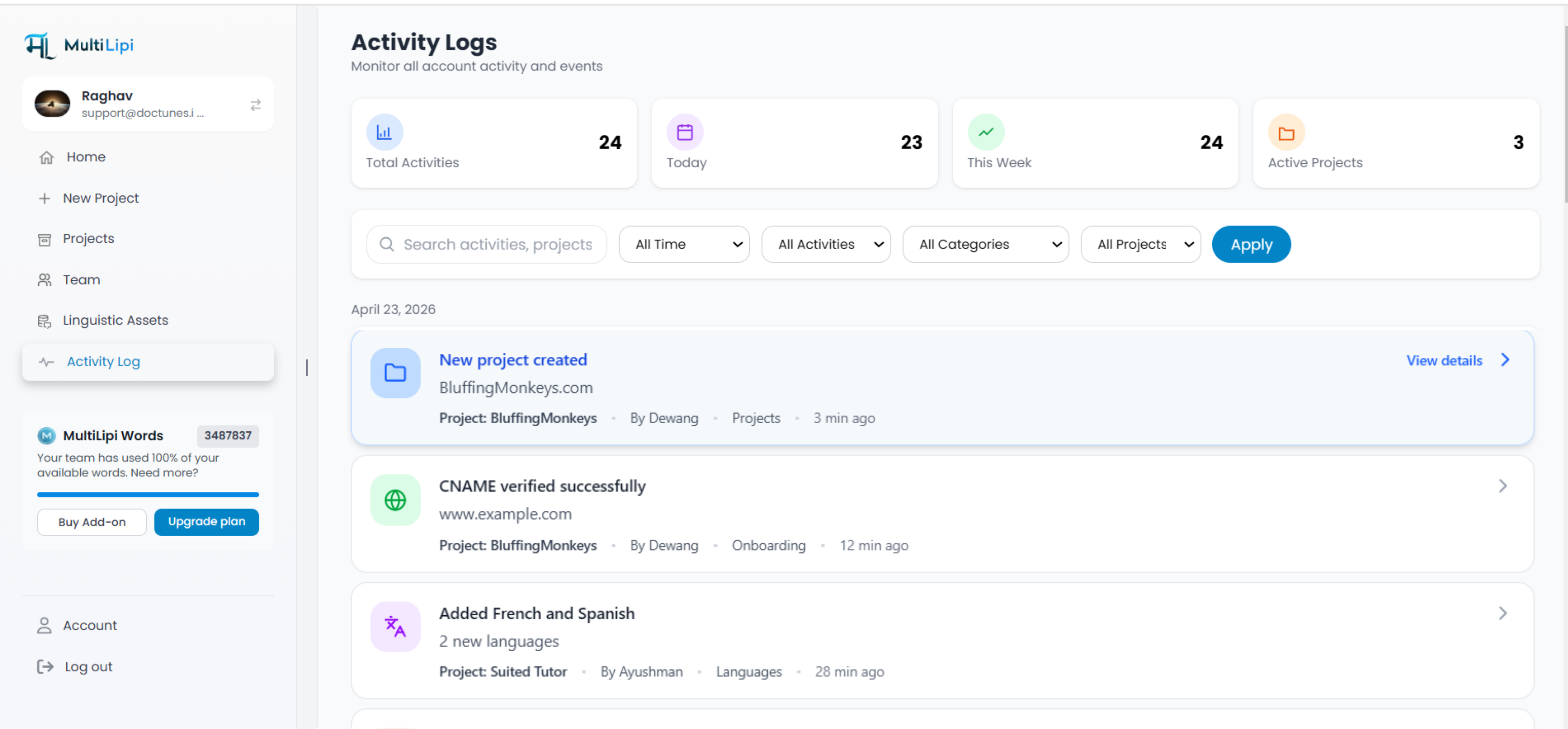
Look at the left-hand navigation panel and click on the Logs (or Activity Log) section. This will open the main Project Logs interface.
Review the Activity Table
Once on the page, you will see a chronological list of all recent activities. The table is broken down into five helpful columns:
How to Filter and View Extended Details
Find exactly what you're looking for in seconds.
If you have a highly active project, your log can fill up quickly. MultiLipi provides robust filtering tools so you can find exactly what you are looking for in seconds.
Using the Filters:
At the top of the Project Logs page, you have three primary ways to sort your data:
Date
Click the Date filter to narrow down activities to a specific day, week, or custom time range.
Projects
If you manage multiple websites in your MultiLipi account, use the Projects dropdown to isolate logs for one specific site.
Search Bar
Know exactly what you are looking for? Type a keyword, event name, or user email into the search box to instantly pull up matching records.
Viewing Extended Details:
Sometimes the standard table columns don't provide quite enough context. If you need to dig deeper into a specific event, simply look to the far right of any row and click the View Details (arrow icon) button.
This will open an extended view, providing the complete technical breakdown and granular data regarding that specific action.
Best Practices for Using Project Logs
Maximize the value of your activity tracking.
Regular Audits
Make it a habit to review your logs weekly, especially after major updates or when onboarding new team members.
Document Critical Changes
When you notice important events in the logs, document them in your project management tool for future reference.
Set Up Alerts
If you notice unusual activity patterns, consider setting up notifications for specific events or user actions.
Use for Training
Review logs with new team members to show them how changes propagate through the system and what best practices look like.
Combine with Analytics
Cross-reference activity logs with your Page Views Dashboard to understand how changes impact traffic and user behavior.
Maintain Complete Visibility Over Your Multilingual Projects
The MultiLipi Project Logs dashboard gives you the transparency and control you need to manage complex multilingual websites with confidence. Whether you're troubleshooting an issue, auditing team activity, or simply staying informed, your activity log is an essential tool for maintaining a healthy, secure, and efficient localization workflow.