
Before You Begin
Make sure you have everything in place before starting configuration.
Requirements
Active WordPress website with administrator access
MultiLipi WordPress plugin installed and activated
A MultiLipi account and website project
A valid MultiLipi project API key
Source and target languages configured in MultiLipi
What You Will Learn
How to connect your WordPress site to MultiLipi using an API key
How to read and understand your verified backend configuration
How to enable and configure language directories for target languages
How to generate and submit a multilingual XML sitemap
How to configure hybrid directory SEO for mixed-content sites
How to enable multilingual WordPress and WooCommerce search
How to set up automatic translation and configure translation caching
How to manage URL slug translations for posts, pages, products, and taxonomies
How to safely reset plugin data and reconfigure from scratch
1. Connect Your WordPress Website to MultiLipi
Enter your API key and synchronize your account configuration.
1.1 Navigate to the Settings Page
In your WordPress admin area, open the MultiLipi menu in the left sidebar and click Settings. At the top of the page you will find the Connect to MultiLipi section.
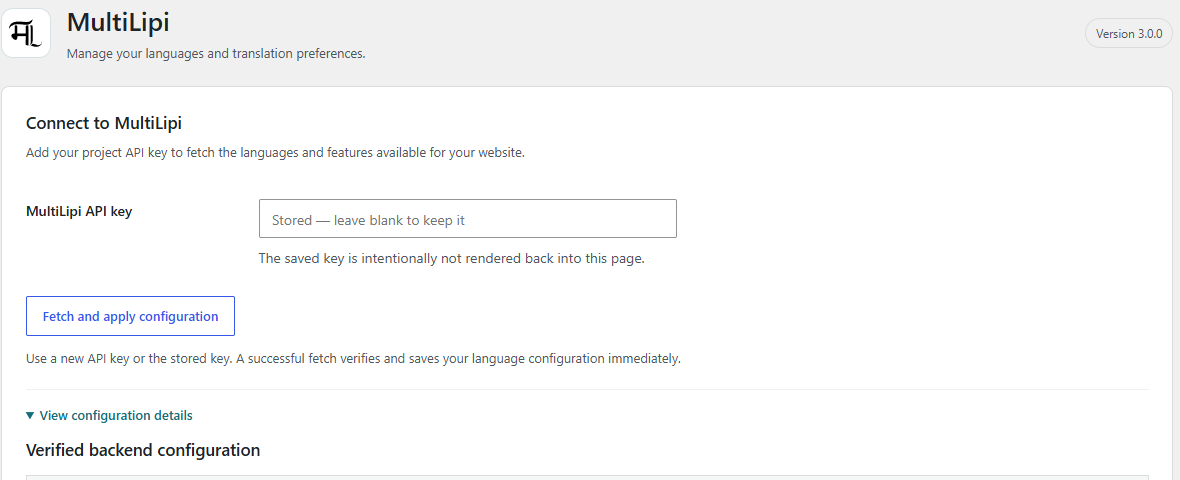
Connect to MultiLipi: API Key Entry and Configuration Sync
1.2 Enter Your MultiLipi API Key
Paste your project API key into the designated field. The key is available from your MultiLipi account dashboard under the website project settings.
Security Note
Your API key is encrypted and stored in the WordPress database. Once saved, the field shows a placeholder to confirm the key is present. To update the key, paste a new value and save. To keep the existing key, leave the field blank.
1.3 Fetch and Apply Configuration
Click Fetch and apply configuration. The plugin contacts MultiLipi and synchronizes the following settings from your account:
Source language
Authorized target languages
Translation and localization features
Slug translation availability
Query translation rules
Content exclusion settings
URL filtering rules
1.4 Verify Your Connection
After a successful fetch, the page will confirm that your configuration has been applied. Re-synchronize whenever you:
Add or remove target languages from your MultiLipi account
Enable or disable features such as slug translation
Update query translation or URL filtering rules
Change content exclusion classes
Move to a new MultiLipi project with a different API key
2. Backend Configuration and Feature Flags
Understand and verify what has been synchronized from your MultiLipi account.
2.1 View Configuration Details
After connecting, click View configuration details to expand the verified backend configuration table. This shows every value that was synchronized from your MultiLipi account.
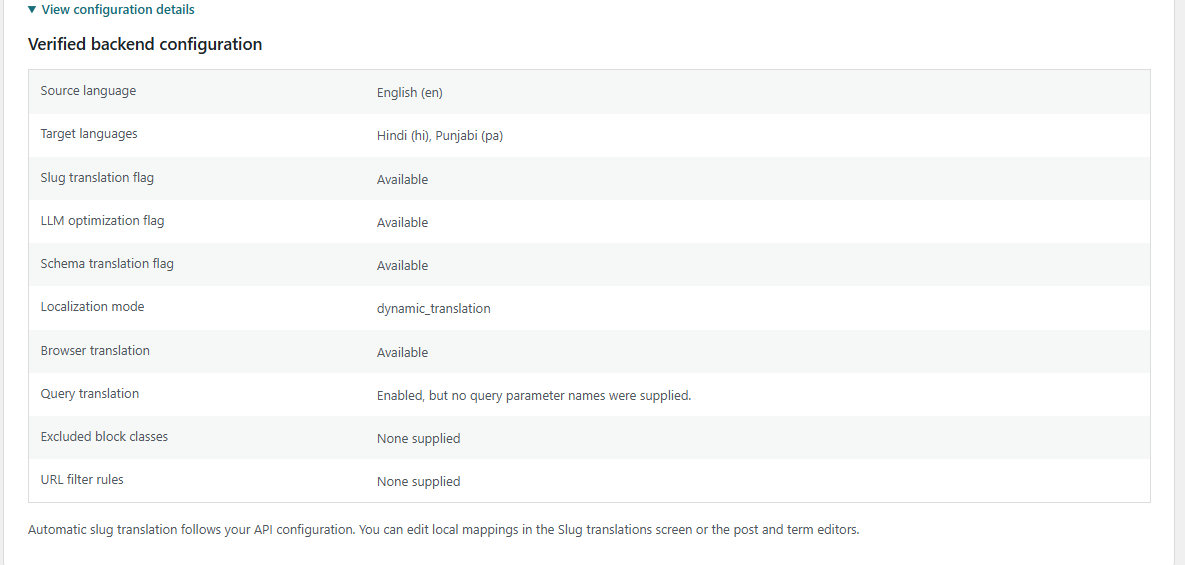
Verified Backend Configuration: Languages, Feature Flags, Localization Mode and Exclusions
2.2 Configuration Fields
| Field | Description |
|---|---|
| Source language | The primary language of your website content |
| Target languages | The languages MultiLipi is authorized to serve for your project |
| Slug translation flag | Whether localized URL slug generation is enabled |
| LLM optimization flag | Whether llms.txt and Markdown route generation is enabled |
| Schema translation flag | Whether structured data (schema.org) localization is enabled |
| Localization mode | Either dynamic_translation or language_redirection |
| Browser translation | Whether client-side browser translation is active |
| Query translation | Which search query parameters are translated |
| Excluded block classes | CSS classes excluded from translation |
| URL filter rules | URL patterns that bypass translation |
2.3 Feature Flags
Slug Translation Flag
When enabled, MultiLipi generates and serves localized URL slugs for your content. Visitors access translated pages at URLs like /hi/हमारे-बारे-में/ instead of the English source slug.
LLM Optimization Flag
Enables automatic generation of llms.txt files and plain-text Markdown routes for each language directory, making your multilingual content accessible to LLM crawlers and AI agents.
Schema Translation Flag
Enables localization of JSON-LD structured data on translated pages, so search engines receive schema markup in the target language rather than the source language.
2.4 Localization Modes
The localization mode is set in your MultiLipi account and determines how translated pages are delivered to visitors.
dynamic_translationMultiLipi intercepts requests to language directory URLs and dynamically translates the underlying WordPress content in real time. No separate WordPress pages are required for target languages.
language_redirectionVisitors are detected by browser language preference and redirected to their matching language directory. The translation layer then serves the appropriate localized content for that directory.
2.5 Query Translation and Exclusions
Query translation rules define which URL parameters trigger translated search behavior. The most common is the WordPress search parameter:
Excluded block classes tell the translation layer which CSS class names to skip when processing page content. For example:
2.6 What If a Feature Is Unavailable?
Check the verified backend configuration table to confirm the feature flag is enabled for your project.
Log in to your MultiLipi account and verify the feature is active at the account level.
Return to the plugin Settings page and click Fetch and apply configuration to re-synchronize.
Refresh the Settings page and expand View configuration details again to confirm the updated value.
If the feature remains unavailable, contact MultiLipi support to review your account permissions.
3. Target Languages and Directory Routing
Enable languages and choose how each directory is handled.
3.1 What Are Language Directories?
Each target language is served from its own URL subdirectory based on the ISO language code. The source language uses the root domain without a prefix.
| Language | Example URL |
|---|---|
| English (source) | https://yourdomain.com/ |
| Hindi | https://yourdomain.com/hi/ |
| Punjabi | https://yourdomain.com/pa/ |
| French | https://yourdomain.com/fr/ |
3.2 Navigate to Target Language Directories
In MultiLipi → Settings, scroll to the Target language directories section. The table includes enable checkboxes, language codes, language names, URL previews, and directory routing dropdowns.
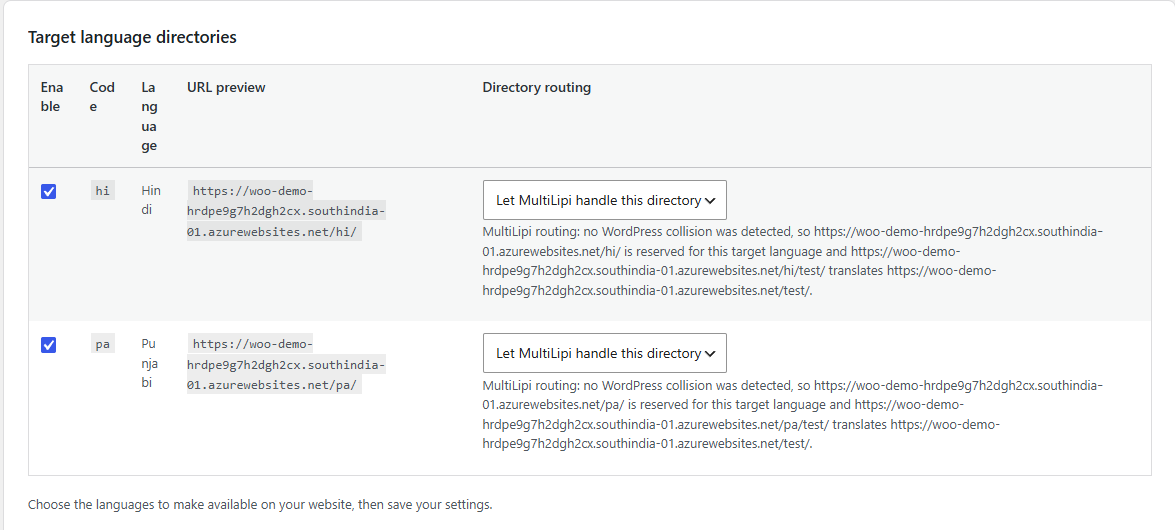
Target Language Directories: Language Enablement, URL Previews and Routing Policies
3.3 Enable Preferred Languages
Check the Enable checkbox beside each language you want to serve. Only enabled languages will be accessible through their directory URL.
3.4 Directory Routing Options
Let MultiLipi handle this directory
MultiLipi intercepts all requests to the language directory and serves translated content. WordPress does not need any native pages under this prefix.
Hybrid routing
Existing WordPress pages under the language directory take priority. When a visitor requests a URL that has no matching native page, MultiLipi handles the request as a translation fallback. Useful for sites that mix manually created and automated translated content.
Native source routing
The directory is reserved for native WordPress content only. MultiLipi does not serve any translated content under this prefix. Use this when you maintain a separate WordPress language install under the same domain.
3.5 Conflict Prevention
MultiLipi automatically prevents nested language prefixes. For example, if /en/ is your source language directory, a target such as en-GB will not create a conflicting /en/en-gb/ path. Each language is assigned a unique top-level prefix.
3.6 Save and Test
Click Save settings at the bottom of the Target language directories section.
Open a browser tab and navigate to one of your enabled language directory URLs.
Confirm that translated content appears and that the URL resolves without a 404 error.
4. Multilingual XML Sitemaps
Generate and submit a sitemap that covers every language directory.
4.1 What Is a Multilingual Sitemap?
A multilingual XML sitemap lists every URL across all your language directories so search engines can discover and index your translated pages efficiently.
| Language | Example URL in Sitemap |
|---|---|
| English (source) | https://yourdomain.com/about-us/ |
| Hindi | https://yourdomain.com/hi/about-us/ |
| Punjabi | https://yourdomain.com/pa/about-us/ |
4.2 Navigate to the Sitemap Setting
In MultiLipi → Settings, open the SEO and search section, then locate Multilingual XML sitemap.
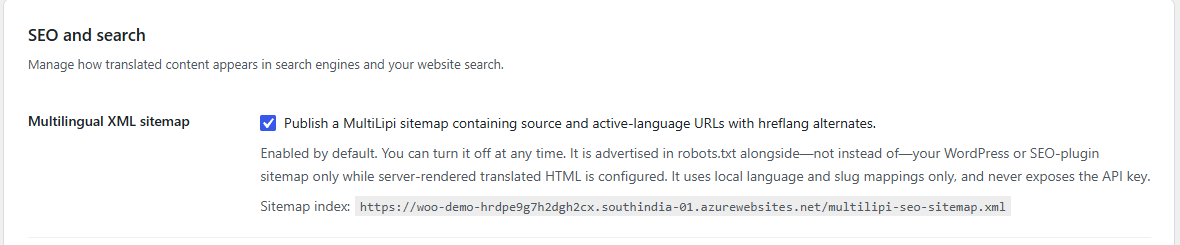
SEO and Search: Multilingual XML Sitemap Configuration and Sitemap Index URL
4.3 Enable the Sitemap
Check the Enable multilingual XML sitemap checkbox and save. The sitemap index is available at:
4.4 Hreflang Annotations
What is hreflang? The hreflang attribute tells search engines which language version of a page to show to users in each region. MultiLipi embeds hreflang annotations into the sitemap so each URL references its language alternates. This helps Google and other search engines avoid showing a Hindi visitor the English page, or vice versa.
4.5 Compatibility With WordPress SEO Plugins
The MultiLipi sitemap coexists alongside your existing SEO plugin's sitemap. The following plugins have been tested for compatibility:
4.6 Automatic robots.txt Discovery
MultiLipi automatically adds the sitemap URL to your site's robots.txt file. You can verify it is present by visiting:
4.7 Submit to Google Search Console
Log in to Google Search Console and select your property.
Open the Sitemaps report from the left navigation.
Click Add a new sitemap.
Enter the MultiLipi sitemap URL.
Click Submit.
Monitor the sitemap status over the following days to confirm successful indexing.
5. Hybrid Directory SEO
Publish correct hreflang and canonical tags for mixed-routing directories.
5.1 Understanding the Hybrid SEO Scenario
When a language directory uses hybrid routing, some URLs are native WordPress pages and others are MultiLipi-translated pages. Both types must be included in hreflang annotations so search engines understand the full multilingual structure.
Native WP Page
yourdomain.com/fr/a-propos/MultiLipi Translated Page
yourdomain.com/fr/services/5.2 Navigate to Hybrid Directory SEO
In MultiLipi → Settings → SEO and search, find the Hybrid directory SEO subsection.
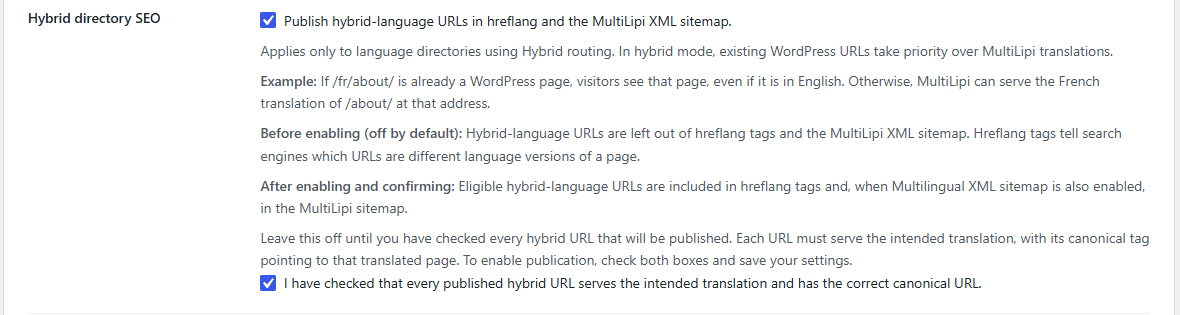
Hybrid Directory SEO: Hreflang Publication and Canonical Verification Controls
5.3 Enable Hybrid-Language SEO Publication
Check Enable hybrid-language SEO publication to allow MultiLipi to publish hreflang tags that include both native WordPress pages and MultiLipi-served translations within the same language directory.
5.4 Verify Canonical URLs
A canonical tag tells search engines which URL is the authoritative version of a page. Without correct canonical configuration, a French URL might incorrectly declare the English source as its canonical, or two URLs may claim each other as canonical, creating a conflict.
Risks Without Correct Setup
A French URL pointing to the English content as its canonical
Duplicate content signals between language directories
Search engines indexing the wrong language version for a query
Hreflang and canonical conflicts causing demotion in localized search results
5.5 Mandatory Confirmation
Before hybrid SEO publication is activated, you must confirm that canonical URLs have been verified on your native WordPress pages under the hybrid directory. The settings page requires you to:
"I have verified that canonical URLs on native WordPress pages under the hybrid language directory are correctly configured."
Both the confirmation checkbox and the Save settings button are required. Checking the box without saving will not activate the feature.
6. Multilingual WordPress and WooCommerce Search
Let visitors search your site in their own language.
6.1 How It Works
When a Hindi visitor searches on your Hindi site, MultiLipi routes the query through its translated search index. The index contains translated versions of your content, enabling accurate matches without requiring the visitor to search in English. The following content types are matched:
Post titles and content
Page titles and content
WooCommerce product titles and descriptions
6.2 Navigate to Multilingual Search
In MultiLipi → Settings → SEO and search, find the Multilingual WordPress search subsection.
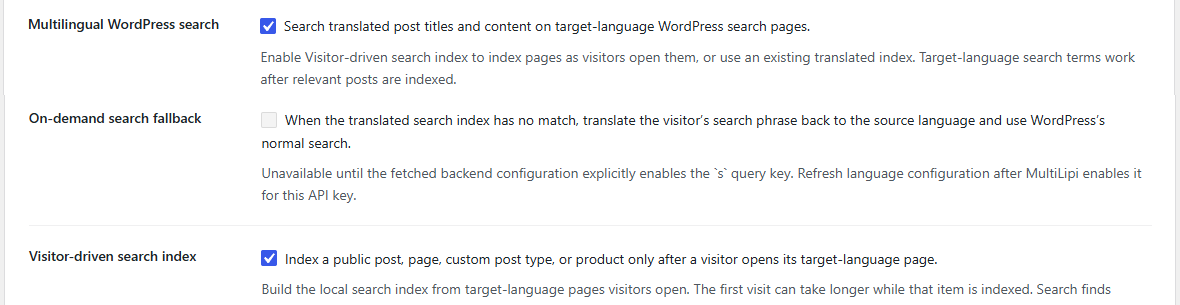
Multilingual Search: Search Enablement, On-Demand Fallback and Visitor-Driven Indexing
6.3 Enable Multilingual Search
Check Enable multilingual search and save. MultiLipi will begin routing search requests from language directories through its translated search index.
6.4 On-Demand Search Fallback
When a visitor searches for a term that does not yet exist in the translated index, the on-demand fallback handles it through the following steps:
MultiLipi checks the translated search index for the query term
No matching entry is found in the target-language index
The fallback translates the query term back to the source language
WordPress performs a standard source-language search
Available results are returned to the visitor
6.5 Visitor-Driven Search Indexing
When visitor-driven indexing is enabled, each search query submitted from a language directory is used to build and expand the translated search index over time. This means the index improves organically as real visitors use your site.
Each new query is checked against the existing index
Missing translations are added to the index during the search request
Future identical queries are served from the index without re-translating
Index entries accumulate as visitor search activity grows
6.6 Language-Specific Search URLs
Search requests from a language directory include the language prefix in the URL. For example, a Hindi search for a term produces:
6.7 Save and Test
Save settings and visit your Hindi or other target-language homepage
Use the search form to enter a term in the target language
Confirm that relevant results appear
Test a term that should trigger the fallback and confirm results are still returned
7. Automatic Translation and Caching
Configure background pretranslation scope and server-side caching.
7.1 Navigate to the Setting
In MultiLipi → Settings, locate the Automatic translation and caching section.
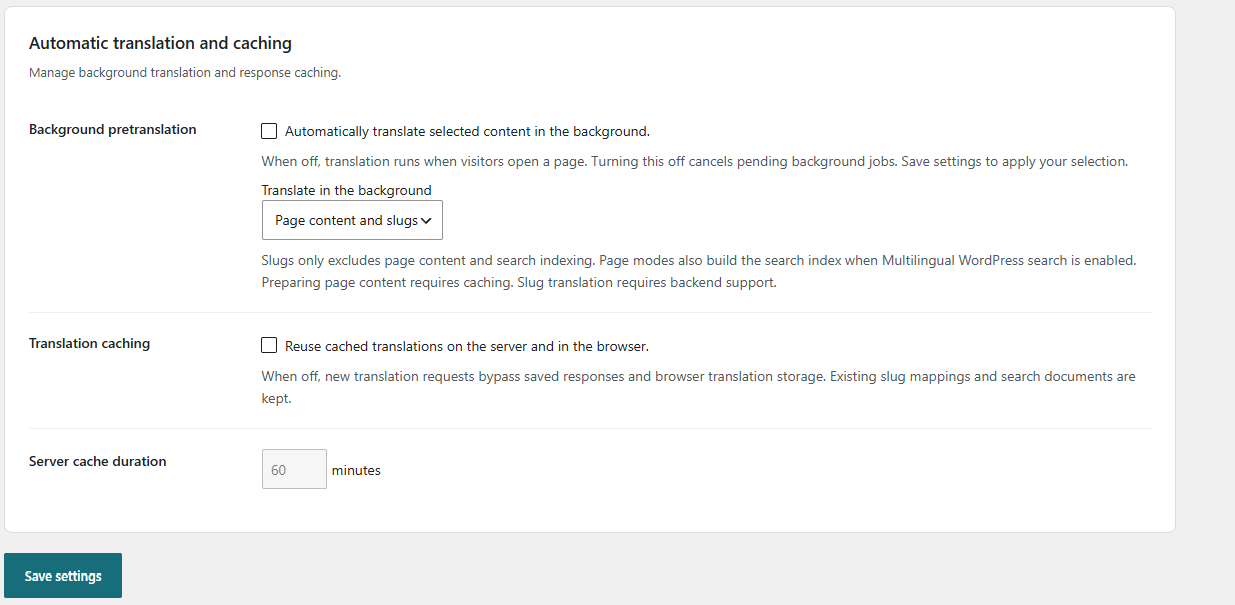
Automatic Translation and Caching: Background Translation Scope, Cache Enablement and Duration
7.2 Background Pretranslation Scope
Background pretranslation processes your content in advance so translated pages load from cache rather than being translated on first request. Choose the scope that matches your priorities:
Page content and slugs
Pretranslates both page content and generates localized URL slugs. Best for sites using both translated content and localized permalinks.
Slugs only
Focuses background processing on URL slug generation only. Choose when prioritizing prebuilt localized permalinks before content is ready.
Page content only
Pretranslates page content without generating localized slugs in the background. Content is ready while slug translation runs on demand.
| Scope | When to Consider It |
|---|---|
| Page content and slugs | Websites using both localized content and URL slug translation |
| Slugs only | Websites prioritizing prebuilt localized permalinks |
| Page content only | Websites preparing translated content without background slug generation |
7.4 Translation Caching
Check Enable translation caching to store translated responses on the server. Cached translations are served on repeat requests without re-translating, reducing response times for all visitors.
7.5 Server Cache Duration
Set how long cached translations are kept before being refreshed. Choose based on how frequently your content is updated:
| Duration (minutes) | Suggested Usage |
|---|---|
| 15 min | Frequently updated websites (news, live events) |
| 30 min | Moderately dynamic content |
| 60 min | General business websites |
| 120 min | Relatively stable content |
Example value for a general business website:
7.6 How Pretranslation and Caching Work Together
Background pretranslation prepares translations before any visitor requests them. Translation caching stores the result of each translation for subsequent requests. When both are active, the first visitor to a page triggers pretranslation, the result is cached, and all subsequent visitors receive the cached translation immediately without waiting.
7.7 Important Considerations
Visitor-driven search indexing disables background pretranslation — choose one approach
Very short cache durations increase translation API usage and may slow response times during peak traffic
Very long cache durations may serve outdated translations when source content changes frequently
Clearing the WordPress object cache or third-party caching plugin cache may also clear MultiLipi translation cache
Background pretranslation runs as a scheduled WordPress cron job — confirm WP-Cron is enabled on your server
8. URL Slug Translations
Manage localized URL slugs for posts, pages, products, and taxonomy terms.
8.1 What Is a URL Slug?
A URL slug is the readable portion of a web address that identifies a specific page. Slug translation replaces the source-language slug with a translated equivalent under the target language directory:
Original (English)
https://yourdomain.com/about-us/Translated (Hindi)
https://yourdomain.com/hi/हमारे-बारे-में/8.2 Navigate to Slug Translations
In the WordPress admin left sidebar, open MultiLipi → Slug translations.
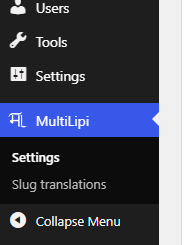
WordPress Admin Navigation: MultiLipi Settings and Slug Translations Menu
The Slug translations dashboard lets you:
View all translated slugs across your target languages
Filter by target language, content object type, or translation status
Edit individual translated slugs manually
Manage taxonomy route base translations
View and edit WooCommerce product slugs on a separate paginated table
Remove slug mappings you no longer need
8.3 Filter Controls
Use the filter controls at the top of the Slug translations table to narrow the list.
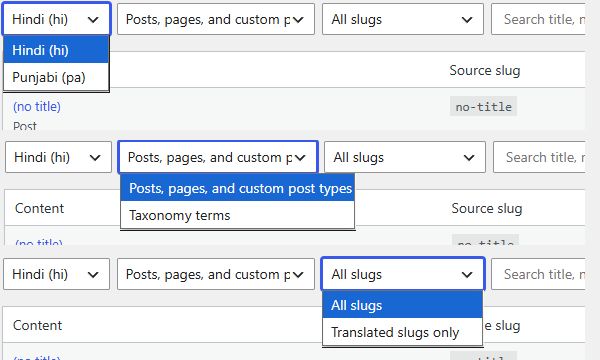
Slug Translation Filters: Target Language, Object Type and Translation Status

Target Language Filter

Content Object Filter

Translation Status Filter
Each filter controls a different dimension of the slug table:
Target language: Show slugs for one specific language or all languages at once.
Content object: Filter by content type: posts, pages, custom post types, or taxonomy terms.
Translation status: Filter by whether a slug has been translated, is pending, or uses the source slug.
Search field: Enter a source slug or title keyword to locate a specific entry quickly.
8.4 Taxonomy Route Bases
In addition to individual content slugs, you can translate the route base that WordPress uses for taxonomy archives. For example, the default WordPress category base creates URLs like:
Original
yourdomain.com/category/news/Hindi Localized
yourdomain.com/hi/श्रेणी/खबरें/The structure is: language / translated base / translated term. Both the base (श्रेणी) and the term (खबरें) are translated independently.
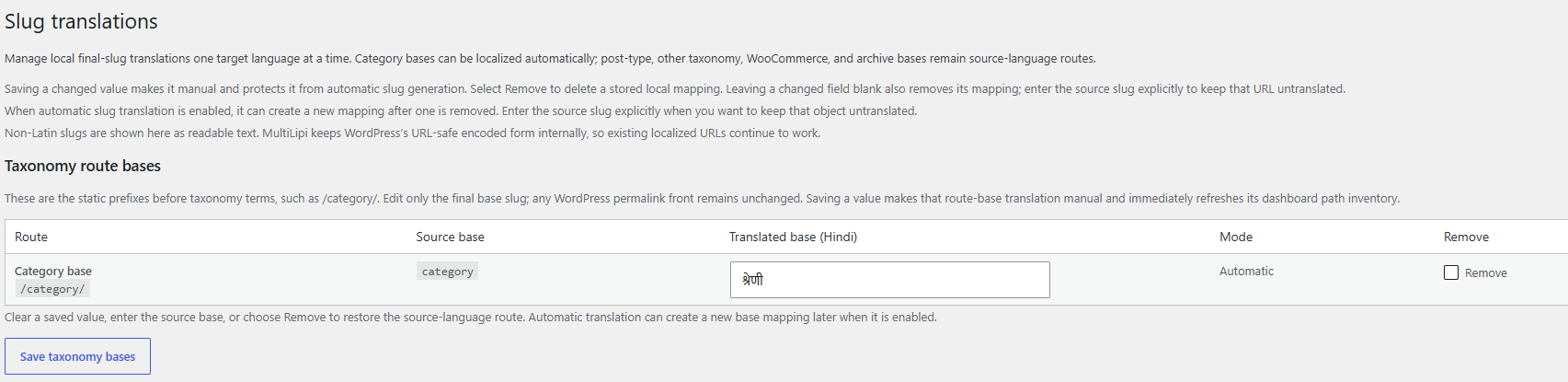
Taxonomy Route Bases: Localized Category Base, Source Base and Translation Mode
To translate a taxonomy route base:
Open MultiLipi → Slug translations.
Locate the Taxonomy route bases panel above the main slug table.
Find the taxonomy you want to localize (e.g., category, tag, or a custom taxonomy).
Enter the translated base in the target language field.
Click Save to apply the localized route base.
/product/ remain source-language routes and are not translated through the taxonomy route base system.8.5 Edit Translated Slugs for Posts, Pages, and Products
The main content slug table shows all translated slug mappings. Each row contains the content title, source slug, translated slug, translation mode, and controls to save or remove the mapping.
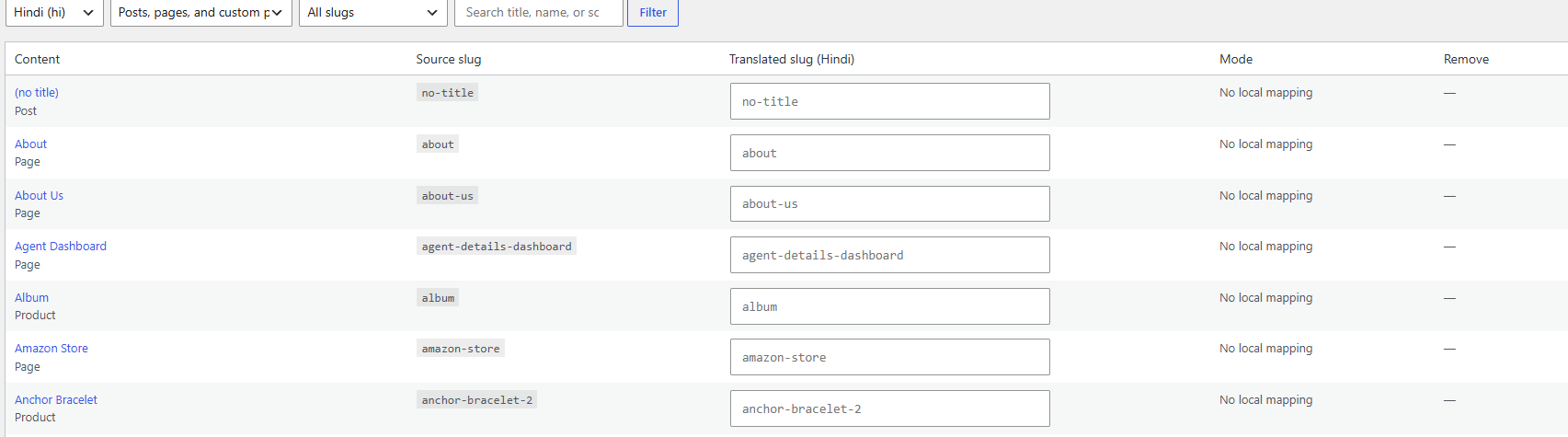
Content Slugs Table: Content Title, Source Slug, Translated Slug, Mode and Remove Controls
| Field | Description |
|---|---|
| Content title | The WordPress post or page title for identification |
| Source slug | The original English slug for the content |
| Translated slug | The localized slug served under the target language directory |
| Mode | Whether the slug was automatically generated or manually set |
| Remove | Deletes the slug mapping for this content item |
To manually translate a slug:
Open MultiLipi → Slug translations.
Use the filters to locate the content item you want to edit.
Click the translated slug field for that row.
Clear the existing value and type your preferred translated slug.
Click Save for that row to apply the change.
The plugin stores the slug as a manual (protected) mapping.
Verify the new URL resolves correctly in a browser.
Example: an About Us page in Hindi.
Source slug
about-usHindi translated slug
हमारे-बारे-मेंWooCommerce Product Slugs
WooCommerce product slugs are displayed in a separate paginated table below the main content slug table. Use the pagination controls to navigate through large product catalogs and save displayed slugs in batches.
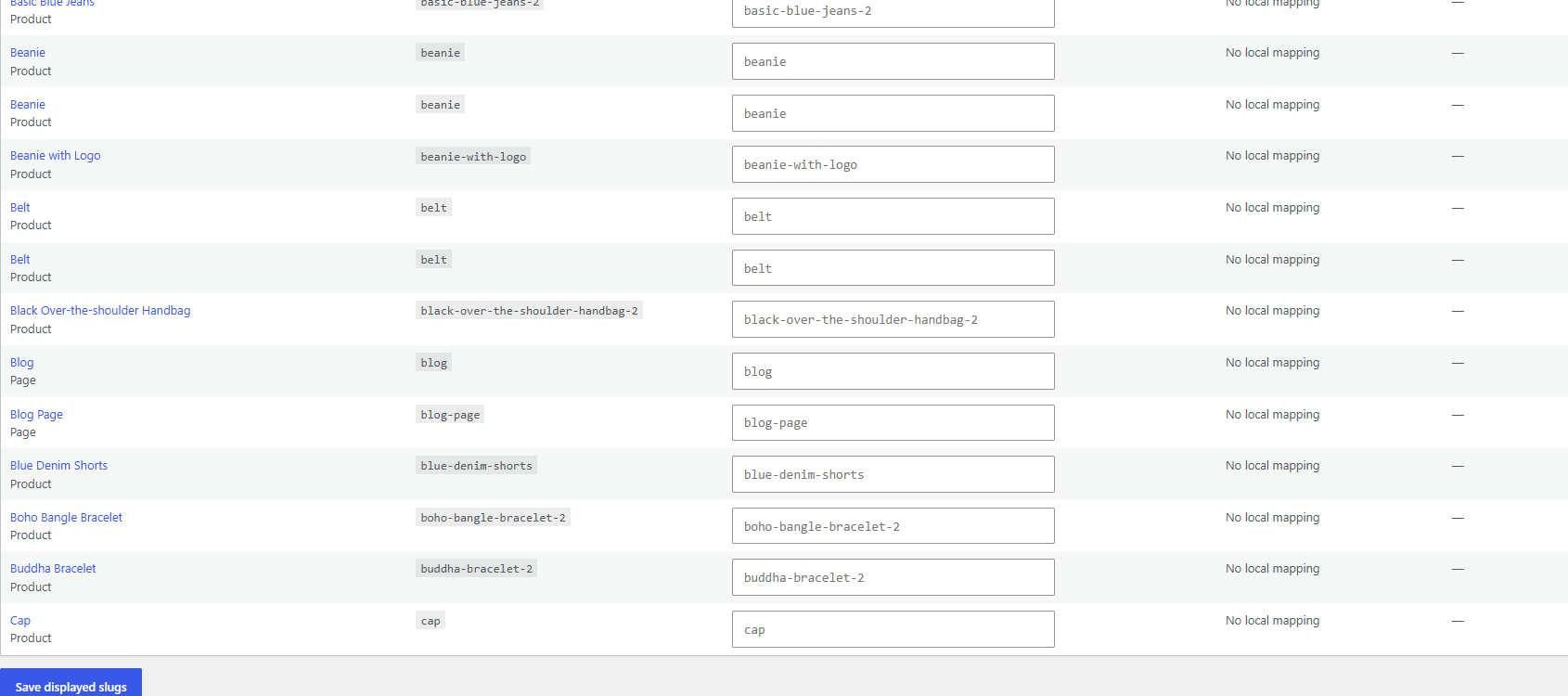
WooCommerce Product Slug Management: Paginated Product Listings and Save Displayed Slugs
8.6 Automatic vs Manual Slug Modes
Automatic
MultiLipi generates the translated slug using AI translation. If the source content changes, the slug may be updated automatically during background pretranslation.
Manual
The administrator has set a specific translated slug. Manual slugs are protected from automatic updates and will not be overwritten during pretranslation runs.
8.7 Unicode URL Handling
Slugs in Hindi (Devanagari), Punjabi (Gurmukhi), and other non-Latin scripts are valid URL characters under the RFC 3987 IRI standard. Browsers display them in their native form, but servers and some tools encode them as percent-encoded sequences.
For example, the Hindi slug हमारे-बारे-में may appear percent-encoded as:
Tip: Always enter your translated slug in its natural script. The plugin stores and serves the Unicode form, and browsers handle the encoding automatically.
8.8 Duplicate Slug Prevention
MultiLipi applies the same uniqueness logic as WordPress itself (wp_unique_post_slug). If a translated slug already exists for another page in the same language directory, a numeric suffix is appended automatically. For example, if /hi/सेवाएं/ is already in use, a duplicate is stored as /hi/सेवाएं-2/.
8.9 Automatic Redirects
When a visitor accesses the source-language slug under a target language directory — for example, /hi/about-us/ — MultiLipi issues a 302 redirect to the translated slug. The following request types are excluded from redirect processing: HEAD requests, AJAX requests, and WooCommerce add-to-cart actions.
8.10 Remove vs Keep Untranslated Slugs
| Action | Result |
|---|---|
| Remove mapping | Deletes the mapping; automatic translation may recreate it during the next pretranslation run |
| Save original slug manually | Keeps the source-language slug as a protected manual mapping under the target directory |
| Save a custom translated slug | Preserves the administrator's preferred localized URL and protects it from automatic overwriting |
8.11 How Slug Mappings Are Stored
Translated slug mappings are stored in a dedicated WordPress database table: ${wpdb->prefix}multilipi_slug_mappings. Each row records the tenant ID, target language, object type, object ID, source slug, translated slug, translation mode (automatic or manual), and creation and update timestamps.
8.12 Recommended Workflow
Confirm slug translation is enabled in your MultiLipi account and that the plugin has synchronized the latest configuration.
Enable background pretranslation with scope set to Page content and slugs.
Allow pretranslation to run for your key pages, posts, and products.
Open MultiLipi → Slug translations and review the generated slugs.
Edit any slugs that do not accurately reflect the target-language meaning.
Save edited slugs — they are stored as manual (protected) mappings.
Test critical translated URLs in a browser to confirm they resolve correctly.
Submit the multilingual sitemap to Google Search Console.
Monitor for 404 errors on translated URLs using a crawler or Search Console coverage report.
Re-run pretranslation after publishing new content to generate slugs for new pages.
Important: Once a translated URL is publicly indexed, changing it may affect navigation and search engine discovery. Plan slug changes carefully and implement redirects from old translated URLs to new ones when necessary.
9. Plugin Data and Reset
Delete all stored MultiLipi plugin data and start fresh if needed.
9.1 Navigate to the Reset Option
In the WordPress admin area, go to MultiLipi → Settings and scroll to the bottom of the page. The Delete all stored data section is located there.

Delete All Stored Data: Administrative Confirmation and Plugin Reset Controls
9.2 What Data Is Removed
Deleted on reset
Stored API credentials
Plugin settings and configuration values
Saved language configuration
Translation cache records
Translated slug mappings
Multilingual search index data
Plugin-managed database tables
Cached transients
Scheduled background translation jobs
9.3 What Is Not Removed
Preserved after reset
WordPress posts, pages, and custom post types
WooCommerce products and orders
Media library files
User accounts and roles
Active themes and other plugins
9.4 How to Delete Plugin Data
Navigate to MultiLipi → Settings and scroll to the bottom.
Read the data deletion warning carefully.
Check the confirmation checkbox: "I understand that all MultiLipi plugin data will be permanently deleted."
Click Delete all stored data.
Wait for the page to reload and confirm the success message.
The reset is protected by a WordPress nonce (security token), a capability check (only administrators can trigger it), and the mandatory confirmation checkbox. All three safeguards must be satisfied for the deletion to proceed.
9.5 Reconfigure After Reset
Retrieve your MultiLipi API key from the MultiLipi account dashboard.
Navigate to MultiLipi → Settings and enter your API key.
Click Fetch and apply configuration to synchronize your account settings.
Open the Target language directories section and re-enable your target languages.
Set the routing policy for each enabled language directory.
Enable the multilingual XML sitemap if required.
Re-enable and configure multilingual search if required.
Set the background pretranslation scope and re-enable translation caching.
Allow pretranslation to run before re-submitting the sitemap to search engines.
10. Setup Checklist
Use this checklist to confirm you have completed every configuration step.
Connection and Configuration
API key entered and saved in plugin Settings
Fetch and apply configuration completed successfully
View configuration details expanded and reviewed
Source language confirmed correct
Expected target languages are listed
Feature flags match your MultiLipi account configuration
Language Directories
Each target language enabled in Target language directories
Directory routing policy selected for each language
Settings saved and language directory URLs tested
No 404 errors on language directory root URLs
Conflict prevention verified — no nested language prefixes
URL Slug Translation
Slug translation flag confirmed enabled in backend configuration
Background pretranslation scope configured
Key page and post slugs reviewed in Slug translations dashboard
Inaccurate auto-generated slugs corrected manually
Taxonomy route bases translated where applicable
Translated URLs tested and resolving correctly in browser
301/302 redirects confirmed working from source slugs under target directories
Multilingual SEO
Multilingual XML sitemap enabled
Sitemap URL verified accessible in browser
robots.txt updated with sitemap URL
Sitemap submitted to Google Search Console
Hreflang annotations confirmed in sitemap
Hybrid directory SEO configured if using hybrid routing
Canonical URLs verified on native WordPress pages in hybrid directories
SEO plugin sitemap compatibility confirmed
Search and Performance
Multilingual search enabled if required
On-demand fallback tested with an untranslated search term
Visitor-driven indexing decision made and configured
Translation caching enabled and cache duration set
Background pretranslation running for key content
WP-Cron confirmed operational on hosting environment
Cache interaction with third-party caching plugins reviewed
Frontend Verification
Each enabled language directory tested in a browser
Language switcher or navigation confirmed working across languages
Search tested in at least one target language
Translated slug URLs confirmed resolving to translated content
Sitemap URLs spot-checked for accuracy
Mobile browser testing completed for at least one language directory
11. Troubleshooting
Diagnose and resolve common issues with the WordPress plugin.
API Key Saved but Languages Not Appearing
Possible Reasons
The API key was entered incorrectly or belongs to a different project.
Fetch and apply configuration was not clicked after saving the key.
Target languages have not been enabled in your MultiLipi account.
Recommended Solution
Re-enter your API key, click Fetch and apply configuration, then expand View configuration details to confirm that target languages appear in the configuration table.
Language Directory Returning 404
Possible Reasons
The language directory has not been enabled in the Target language directories section.
WordPress permalink settings were not re-saved after enabling a new language directory.
The routing policy conflicts with an existing WordPress permalink structure.
Recommended Solution
Enable the language in Target language directories, save settings, then visit WordPress Settings → Permalinks and click Save Changes to flush rewrite rules without making changes.
Multilingual Sitemap Not Available
Possible Reasons
The sitemap is not enabled in SEO and search settings.
The project is configured to use browser-only translation, which does not support server-generated sitemaps.
A conflicting plugin is serving a response at the sitemap URL.
Recommended Solution
Verify the sitemap enable checkbox is checked and saved. Confirm in your MultiLipi account that server-side translation is active. Temporarily deactivate other SEO or caching plugins to test for conflicts.
Translated URL Slugs Still in English
Possible Reasons
The slug translation flag is not enabled in your MultiLipi account.
Background pretranslation has not completed for the affected content.
The plugin configuration has not been synchronized since slug translation was enabled.
Recommended Solution
Check the slug translation flag in View configuration details. If it shows false, log in to your MultiLipi account and enable the feature, then re-synchronize. If enabled, check that background pretranslation has run.
Manually Translated Slug Keeps Changing
Possible Reasons
The slug was saved without switching to manual mode explicitly.
Background pretranslation is overwriting auto-generated slugs.
Recommended Solution
Open Slug translations, locate the affected slug, enter your preferred value, and click Save for that row. Saved slugs become manual (protected) mappings that pretranslation will not overwrite.
Removed Slug Mapping Appeared Again
Possible Reasons
Background pretranslation recreated the mapping after it was removed.
The content was included in a pretranslation run triggered by a new publish or update.
Recommended Solution
If you want to prevent automatic recreation, save the source slug or a preferred translated slug as a manual mapping instead of removing the row.
Hindi or Punjabi URL Looks Percent-Encoded
Possible Reasons
The browser or operating system is displaying the raw percent-encoded form of the URL.
The link was copied from a system that does not decode Unicode URLs.
Recommended Solution
This is expected behavior for environments that display the raw encoding. Modern browsers typically show the decoded Unicode form in the address bar. The URL is valid and resolves correctly regardless of encoding.
Translated Search Returning No Results
Possible Reasons
The multilingual search index has not yet been populated for the searched term.
The search query parameter does not match the one configured in MultiLipi.
Multilingual search is not enabled or the settings were not saved.
Recommended Solution
Confirm multilingual search is enabled and saved. Check the query translation configuration in View configuration details. If the index is empty, enable on-demand fallback and search again to trigger index building.
Background Translation Not Progressing
Possible Reasons
WP-Cron is disabled or not running on the hosting environment.
Visitor-driven search indexing is enabled, which disables background pretranslation.
The pretranslation scope is set to Slugs only but content translation is expected.
Recommended Solution
Confirm WP-Cron is operational using a cron testing plugin or server-side cron trigger. Check that visitor-driven indexing is not enabled if you need background pretranslation. Verify the pretranslation scope matches your expectation.
Translation Showing Older Content
Possible Reasons
Cached translation has not expired and still reflects an earlier version of the content.
Background pretranslation has not re-run since the content was updated.
Recommended Solution
Reduce the server cache duration temporarily or clear the WordPress object cache and any third-party caching plugin caches. Trigger a pretranslation run for the affected content to regenerate the translation.
Frequently Asked Questions
Common questions about the MultiLipi WordPress plugin.
Q.Do I need a MultiLipi account before installing the plugin?
Yes. The plugin requires a valid MultiLipi API key, which is generated from a MultiLipi account. You will also need your source and target languages configured in MultiLipi before the plugin can synchronize its configuration.
Q.What happens if I save the wrong API key?
The plugin will attempt to fetch configuration using the key you entered. If the key is invalid, the fetch will fail and a notice will appear. Simply re-enter the correct key and click Fetch and apply configuration again.
Q.Can I use the plugin with a subdomain or subdirectory multisite setup?
The plugin is designed for single-site WordPress installations. Compatibility with WordPress Multisite networks depends on your specific configuration. Contact MultiLipi support for guidance specific to your setup.
Q.Will enabling a language directory affect my source-language URLs?
No. Language directories use language-code prefixes (for example, /hi/ for Hindi). Your source-language URLs remain unchanged at the root domain.
Q.Can I use MultiLipi slug translation alongside another translation plugin?
This depends on the other plugin. Conflicting slug-handling logic between two plugins can cause unpredictable URL behavior. Test thoroughly in a staging environment before using MultiLipi alongside another translation plugin.
Q.How long does background pretranslation take to complete?
Processing time depends on the number of pages, posts, and products on your site and the number of target languages. For large sites, pretranslation may take several hours or days to complete a full pass.
Q.Does the multilingual sitemap replace my existing sitemap?
No. The MultiLipi sitemap is a separate sitemap index available at its own URL. Your existing SEO plugin continues to generate its own sitemap. You can submit both to Google Search Console independently.
Q.Do I need to configure hreflang manually?
No. MultiLipi handles hreflang annotation automatically within the multilingual XML sitemap and in page-level head tags for translated pages. For hybrid routing scenarios, review the Hybrid directory SEO section to confirm correct canonical and hreflang output.
Q.What is the difference between automatic and manual slug modes?
Automatic slugs are generated by MultiLipi translation and may be updated during background pretranslation runs. Manual slugs are explicitly set by an administrator and are protected from automatic overwriting.
Q.Can visitors search in their native language without any configuration?
Multilingual search must be explicitly enabled in the plugin settings. Once enabled, visitors can submit search queries in their language from the language directory and receive matching translated results.
Q.What happens to my translated slugs if I reset the plugin?
All translated slug mappings stored in the database are deleted. You will need to allow pretranslation to regenerate slugs automatically, or re-enter manual slug translations after reconfiguring the plugin.
Q.Is WooCommerce supported?
Yes. The plugin supports WooCommerce product slug translation through the dedicated WooCommerce product slug table in the Slug translations dashboard. Multilingual search also matches WooCommerce product titles and descriptions.
Q.Can I translate taxonomy terms like categories and tags?
Yes. The taxonomy route base system allows you to translate the route prefix (for example, /category/ → /श्रेणी/) and the individual term slug (for example, /news/ → /खबरें/) independently.
Q.What does the configuration-generation marker do?
The marker is a timestamp or version token stored alongside each synchronized value. It allows the plugin to detect when a configuration value was last fetched. If you fetch configuration again, only values from the most recent fetch are accepted — preventing stale or partial configurations from being applied.
Q.Where can I get support if I cannot resolve an issue?
Visit the MultiLipi Help Center for additional documentation or contact MultiLipi support directly through the contact page on multilipi.com.