
The MultiLipi Wix app helps you translate your Wix website into multiple languages, manage multilingual content, and configure international SEO from a centralized dashboard. Whether you are running a business website, an online store, a blog, or an agency-managed Wix project, MultiLipi connects your site to its cloud translation platform so you can offer localized experiences to visitors across different markets.
With MultiLipi for Wix (v1.0 Enterprise), you can connect your Wix website using a unique Project Key, enable the translation runtime, display a floating language switcher, manage supported languages, apply terminology rules, and configure hreflang references for international search engines.
Before You Begin
Make sure you have everything in place before starting the integration.
Requirements
Active Wix website created with Wix Studio or Wix Editor
Administrator or appropriate site-management permissions
Access to your Wix Dashboard at manage.wix.com
An active MultiLipi account
Your website's source language and intended target languages
MultiLipi for Wix app installed on the site you want to translate
What You Will Learn
How MultiLipi integrates with Wix through three core components
How to create a MultiLipi project and generate your integration script
How to access and navigate the MultiLipi app inside Wix
How to connect your Wix website using your Project Key
How to verify your connected website and synchronized language settings
How to configure Wix Custom Code and multilingual SEO hreflang tags
How to use and position the floating language switcher
How to manage languages, glossaries, and translation analytics
How to safely disconnect or reconnect your MultiLipi project
1. Understand How MultiLipi Works with Wix
Three components work together to deliver a multilingual Wix experience.
MultiLipi integrates with Wix through its Wix application, cloud translation engine, and website translation runtime. These components work together to connect your site, retrieve available language settings, and deliver multilingual functionality to visitors.
1.1 The Three Components of the MultiLipi Wix Integration
Wix Dashboard App
An embedded management interface inside your Wix Dashboard. Connect your site, view status, review subscribed languages, and access the MultiLipi Cloud Dashboard.
Cloud Translation Engine
The cloud platform manages source and target language configuration, translation processing, caching, custom glossaries, project authorization, and analytics.
Website Translation Runtime
A CDN-hosted JavaScript file responsible for the floating language switcher and frontend content localization on your live Wix website.
1.2 The Runtime Script URL
The translation runtime is delivered from:
1.3 How the Integration Works
You create a project in the MultiLipi Dashboard
MultiLipi generates the project's integration details and Project Key
You connect the Wix app using that Project Key
The app validates the project and synchronizes authorized languages
The translation runtime is activated for the connected website
You verify the installation from the MultiLipi Dashboard
Visitors can access the supported multilingual experience
2. Create Your MultiLipi Project and Generate the Wix Script
Set up your translation project and retrieve your integration script before connecting in Wix.
2.1 Open the MultiLipi Dashboard
Visit dashboard.multilipi.com and sign in to your MultiLipi account. From the main dashboard click + Add New Project and select Wix as your website platform.
2.2 Enter Your Website Details
During project creation, provide your Wix domain — for example https://www.yourbrand.com. Then select your source language (the language your original content is written in) and your target languages such as Hindi, Spanish, French, or German. Available languages depend on your MultiLipi subscription.
2.3 Open the Verify Script Screen
During onboarding, MultiLipi displays the website integration snippet on the Verify Script step. This screen includes the generated code, installation status, and script verification controls.
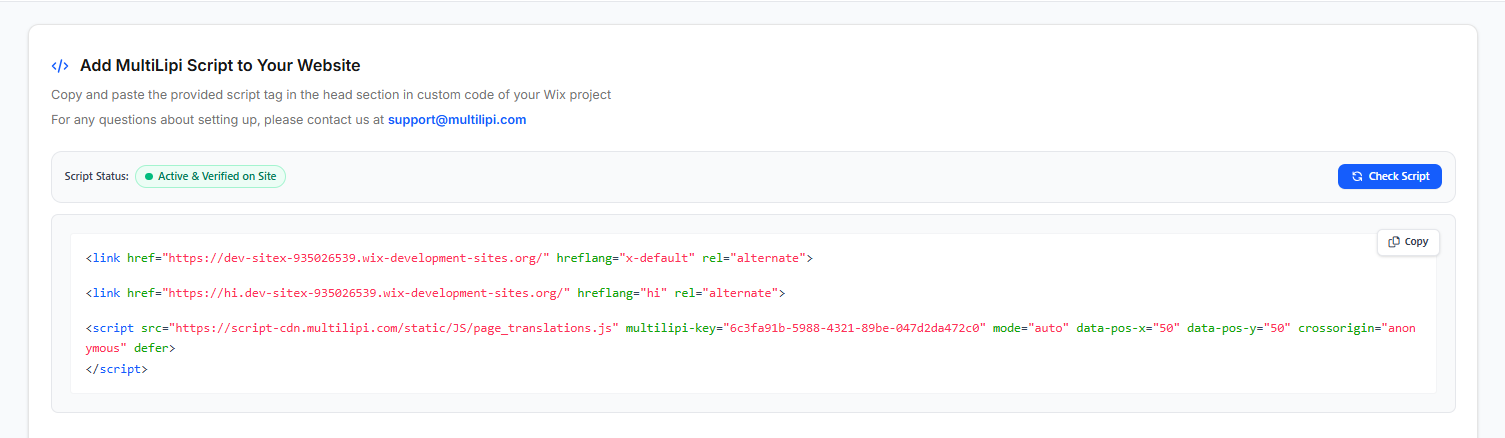
Figure 1.1 — MultiLipi Onboarding: Integration Script, Verification Status and Check Script Button
2.4 Understand the Generated Integration Script
The generated snippet contains several key elements:
Hreflang alternate references — HTML link elements identifying language alternatives such as hreflang="hi" for Hindi and hreflang="x-default" for the fallback URL.
Translation runtime URL — The CDN-hosted JavaScript component loaded from script-cdn.multilipi.com.
Project Key — A unique 36-character UUID via the multilipi-key attribute used to authenticate the connection.
Automatic language switcher — Configured via mode="auto" to display the floating widget automatically.
Switcher position — Controlled by data-pos-x and data-pos-y attributes — e.g. data-pos-x="90" data-pos-y="90" for bottom-right placement.
2.5 Copy the Integration Information
Locate the generated code block on the Verify Script screen
Click Copy to copy the complete snippet
Keep the snippet available for the installation process
Identify your Project Key from the generated configuration
Note: you can also find the Project Key later in Project Settings → Setup
3. Access the MultiLipi App in Wix Dashboard
Find and open the MultiLipi management screen inside your Wix administration area.
3.1 Open Your Wix Website Dashboard
Visit manage.wix.com and sign in. If your account manages multiple websites, select the Wix site you want to connect.
3.2 Find the MultiLipi App
Locate Apps in the Wix Dashboard sidebar
Open the installed app section
Select MultiLipi to open the management screen inside Wix
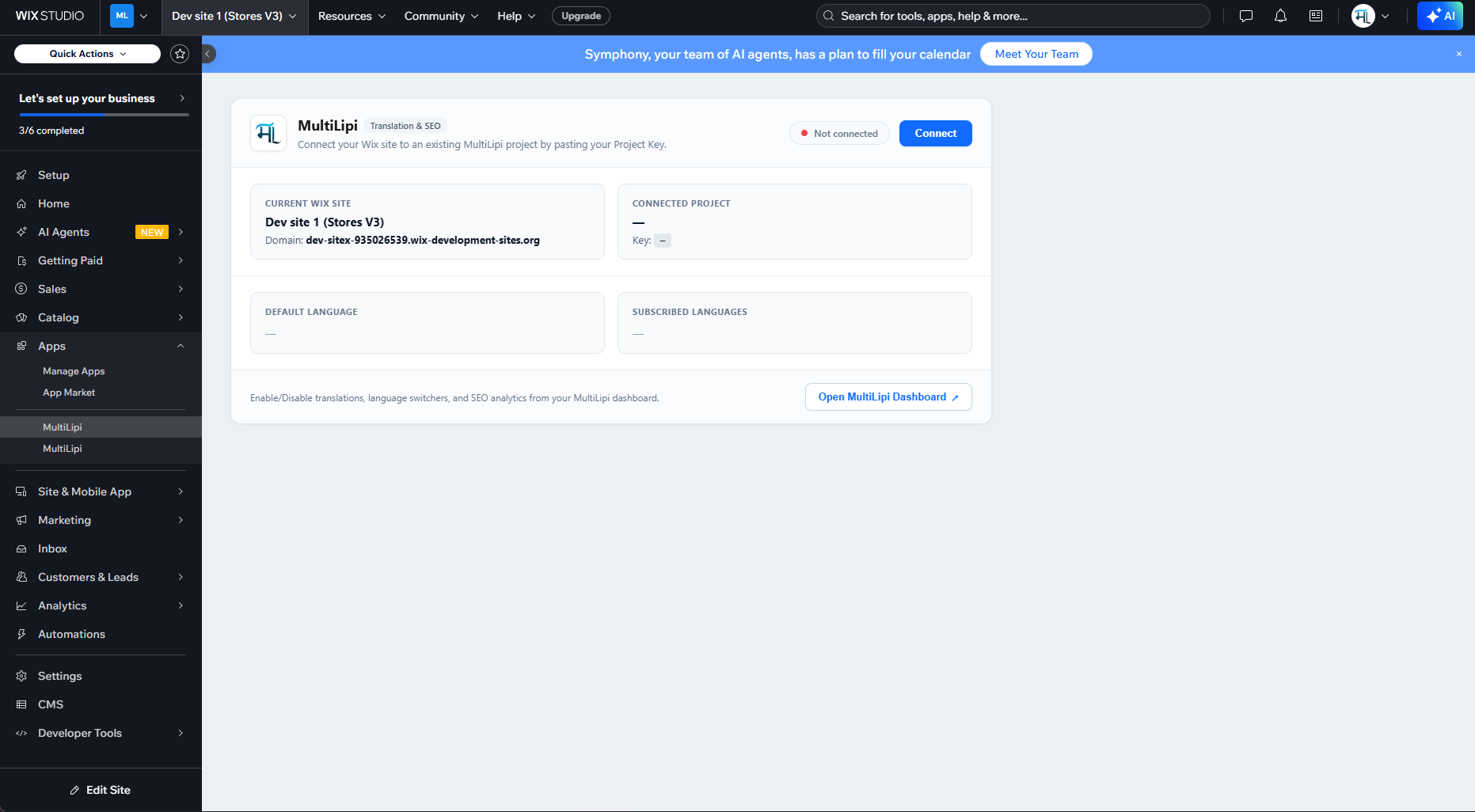
Figure 2.1 — MultiLipi Wix App: Initial Disconnected Dashboard
3.3 Understand the Disconnected Dashboard
The MultiLipi dashboard contains several information cards. Before connecting a project:
| Card | What It Shows |
|---|---|
| Connection status | Not connected — with a Connect button |
| CURRENT WIX SITE | The site name and domain currently selected in Wix |
| CONNECTED PROJECT | Empty until a project is paired with this site |
| DEFAULT LANGUAGE | Empty until project configuration is retrieved |
| SUBSCRIBED LANGUAGES | Target languages after connecting |
| Open MultiLipi Dashboard | External shortcut to your full cloud configuration |
4. Connect Your Wix Website Using the MultiLipi Project Key
Pair your Wix site with the project you created in the MultiLipi Dashboard.
4.1 Open the Connect Modal
From the MultiLipi app dashboard, click Connect. A dialog appears titled Connect MultiLipi Project.
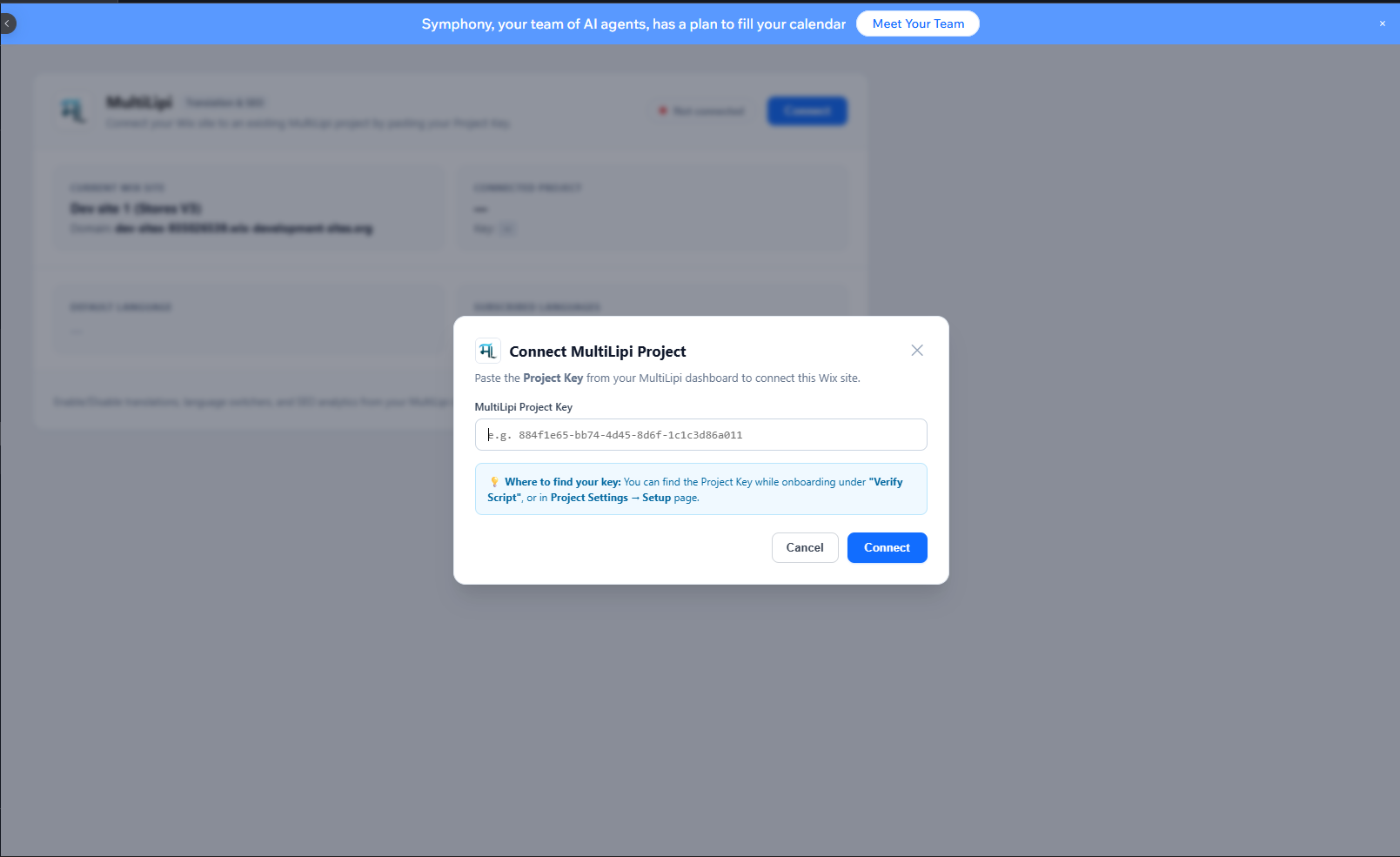
Figure 3.1 — Connect MultiLipi Project: Project Key Input and Connection Controls
4.2 Enter Your Project Key
Inside the dialog, locate MultiLipi Project Key and paste the key copied from your MultiLipi onboarding screen. The key uses a UUID-style identifier. Confirm:
You copied the entire key without extra spaces before or after it
The key belongs to the correct project
The project is configured for the Wix domain being connected
The project's language configuration is set up
4.3 How the Project Key Connection Works
Project Validation
The Wix integration communicates with MultiLipi Cloud to validate the submitted Project Key and check authorization.
Domain Verification
The backend checks whether the project is authorized for the selected Wix domain to prevent unauthorized cross-site use.
Secure Storage
The app stores connection information in a protected Wix backend collection named multilipiSettings.
Script Activation
The app uses Wix's embedded script functionality to activate the MultiLipi translation runtime on the connected website.
4.4 What If the Connection Fails?
If the app displays Invalid project key or failed to fetch languages:
Confirm the key was copied correctly without leading or trailing spaces
Verify the MultiLipi project still exists in your dashboard
Check that the project domain matches your Wix website domain
Confirm the project's language configuration is set up correctly
Retry the connection
5. Verify Your Connected Wix Website
Confirm the Wix app and MultiLipi Cloud are communicating correctly.
5.1 Review the Connected Dashboard
Return to the MultiLipi app inside Wix. The connection status should now display Connected. The original Connect button is replaced by a Disconnect option.
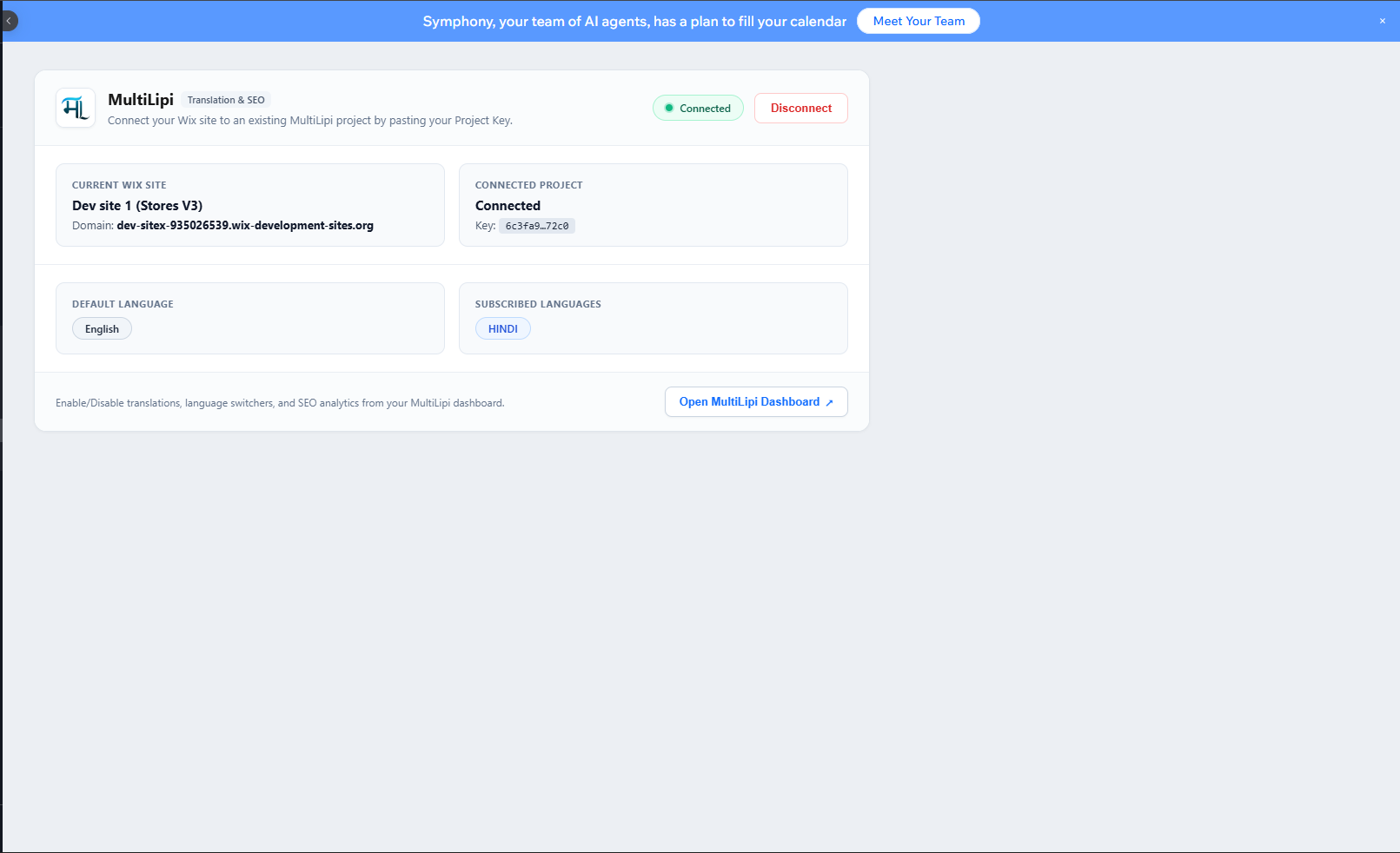
Figure 4.1 — MultiLipi Wix App: Connected Dashboard, Default Language and Subscribed Languages
5.2 Verify the Dashboard Cards
Current Wix Site — Confirm the displayed site name and domain are correct for the website you intended to connect.
Connected Project — Shows the active connection with a masked portion of your Project Key for security.
Default Language — Verify the source language matches your MultiLipi project (e.g. English).
Subscribed Languages — Confirm all configured target languages appear (e.g. Hindi, Spanish, German). If a language is missing, review your project in MultiLipi.
5.3 Complete Script Verification
Return to the MultiLipi Dashboard and open your Wix project
Navigate to the Verify Script step
Click Check Script and wait for the verification result
When verification succeeds, the status changes to Active & Verified on Site.
6. Configure Wix Custom Code and Multilingual SEO
Optionally deploy the integration snippet manually and configure hreflang for international search.
6.1 When Should You Use Wix Custom Code?
Manual Custom Code installation is useful when you need to deploy the provided integration snippet through Wix's code management interface. However, if the MultiLipi Wix app already embeds the required runtime successfully, avoid adding a duplicate copy.
6.2 Open Wix Custom Code Settings
From the Wix Dashboard, select Settings
Find the Advanced settings area
Click Custom Code
Select + Add Custom Code
6.3 Configure Code Placement
If using the manual method, paste the complete project-generated snippet and name it MultiLipi Translation & Hreflang Tags. Use these placement settings:
| Wix Setting | Configuration |
|---|---|
| Add Code to Pages | All pages |
| Code loading | Load code once |
| Place Code in | Head |
6.4 Understanding Hreflang Tags
Hreflang is an HTML attribute used to identify language or regional alternatives. The MultiLipi snippet may include references such as:
Why Accurate Alternate URLs Matter
A properly configured hreflang setup helps search engines understand relationships between language versions. Each alternate reference should point to the correct publicly accessible localized page.
Important Technical Distinction
Adding hreflang links does not automatically make JavaScript-translated content indexable. Each referenced language URL must be accessible, display the intended language, and provide usable content to crawlers.
7. Use the Floating Language Switcher and Translate Your Wix Storefront
Configure, position, and test the floating widget on your live Wix website.
7.1 What Content Can MultiLipi Translate?
The Wix manual describes frontend translation support for content such as:
7.2 Customize the Floating Widget Position
data-pos-xControls the horizontal coordinate. 0 = far left, 50 = center, 100 = far right.
data-pos-yControls the vertical coordinate. 0 = top, 50 = middle, 100 = bottom.
7.3 Language Preference Persistence
The documented runtime stores the visitor's selected language preference in browser session storage, allowing the site to reuse that preference during subsequent navigation within the applicable browser session.
Example Visitor Journey
Visitor opens your English website
Selects Hindi from the language switcher
Eligible visible content is translated to Hindi
Visitor navigates to another page
Runtime reuses the saved language preference for a consistent experience
8. Manage Languages, Glossaries and Analytics in MultiLipi Cloud
Use the MultiLipi Dashboard for detailed translation management beyond the Wix app.
8.1 Add a New Target Language
Open your Wix website project in MultiLipi at dashboard.multilipi.com
Navigate to Languages and click + Add Target Language
Select the new language (e.g. Japanese after initially configuring Hindi and Spanish)
Save the changes
When the Wix app retrieves its updated configuration, the language will appear in the SUBSCRIBED LANGUAGES card and become available in the live language switcher.
8.2 Configure Terminology and Glossary Rules
Open MultiLipi Dashboard → Glossary to manage translation terminology:
Do Not Translate
Terms that must remain unchanged in every language — company names, product trademarks, brand-specific expressions, technical abbreviations.
Preferred Translations
Terms that must be translated consistently using an approved translation. Useful for B2B, healthcare, financial, or technical industry terminology.
8.3 Review Multilingual Analytics
The MultiLipi Cloud Dashboard provides analytics including pageviews by target language, frequently localized pages and products, and translation character and word usage. These reports help you understand which languages receive more activity and where to focus terminology refinement.
9. Disconnect or Reconnect Your MultiLipi Wix Project
Safely remove or re-establish the connection between Wix and your MultiLipi project.
9.1 When Would You Disconnect?
Moving from a development project to a production project
Changing the MultiLipi organization associated with the website
Transferring website ownership
Temporarily disabling the integration during redevelopment
9.2 Disconnect the Project
Navigate to Wix Dashboard → Apps → MultiLipi, confirm the site is currently connected, and click Disconnect. Review and confirm the prompt. The documented workflow removes the locally stored Project Key from the Wix backend and deactivates the app-managed embedded script configuration.
9.3 What Happens to Your MultiLipi Cloud Data?
Disconnecting the Wix app does not delete translations, glossaries, or project configuration stored in your MultiLipi Cloud account. The cloud project remains available for future use. This is different from deleting your MultiLipi project.
9.4 Reconnect Your Website
Open the MultiLipi app in Wix and click Connect
Enter the appropriate MultiLipi Project Key
Complete the connection and verify the synchronized language settings
Return to the MultiLipi Dashboard
Use Check Script to verify the live integration
10. Troubleshoot Common MultiLipi Wix Integration Issues
Diagnose and fix the most common problems encountered during or after setup.
⚠ Invalid project key or failed to fetch languages
Possible Causes
The Project Key was pasted incorrectly
The project no longer exists in your MultiLipi account
The configured project domain does not match the Wix website
The backend validation request was unsuccessful
What To Do
Open the MultiLipi Dashboard and select your project
Navigate to Project Settings → Setup and copy the Project Key again
Confirm the project's configured domain exactly matches your Wix domain
Retry the connection inside Wix
⚠ Failed to load saved settings
Possible Causes
Wix backend data access or initialization issue
What To Do
Refresh the Wix Dashboard and open the MultiLipi app again
Check whether the connection information loads
If the app is disconnected, retry with the correct key
If the error persists, contact support with the displayed message
⚠ The language switcher isn't appearing
Possible Causes
The Wix website has not been published
The script is not installed or active
A browser extension blocks the CDN script
The connection has not been completed
What To Do
Confirm the app shows Connected
Open the MultiLipi Dashboard and check the script status
Publish your Wix website
Open the public website in a private browsing window with extensions disabled
⚠ Script verification remains pending
Possible Causes
Your website is unpublished or requires a password
The project domain is incorrect
The verification service cannot access the page
What To Do
Ensure the Wix site is publicly accessible
Confirm its domain matches the MultiLipi project
Verify the integration script is present on the live page
Click Check Script again
⚠ A new target language isn't appearing
Possible Causes
The language was not added to the connected MultiLipi project
The Wix interface has not refreshed its configuration
What To Do
Open your project in MultiLipi and check Languages
Confirm the target language is configured and save
Reopen the MultiLipi Wix app and review SUBSCRIBED LANGUAGES
Test the storefront switcher on the live site
⚠ The language switcher appears twice
Possible Causes
The runtime may have been installed through both the Wix app and manual Wix Custom Code
What To Do
Confirm the Wix app's embedded script is active
Open Wix Settings → Custom Code and check for an additional MultiLipi runtime script
Remove or disable the duplicate installation code
Publish and retest on the live site
⚠ Some Wix Store elements are not translated
Possible Causes
Dynamic elements rendered by Wix applications or third-party components after the initial page loads
What To Do
Identify which elements remain untranslated
Confirm the target language is active
Retest after the element is displayed or updated
Check whether glossary or exclusion rules affect the text
Contact support with the affected page URL and a description of the untranslated component
⚠ Hreflang tags aren't visible
Possible Causes
The integration code hasn't been published
The snippet is missing or incorrectly placed
The tags are inserted dynamically rather than in the initial HTML response
What To Do
Verify the site is published and inspect the document head
Review the MultiLipi-generated snippet and confirm alternate URLs
Check both initial HTML and rendered DOM where relevant
For SEO verification, distinguish server-returned source HTML from elements inserted later by JavaScript
MultiLipi Wix Production Launch Checklist
Complete all checks before making your translated website available to international audiences.
Project Setup
Wix App Connection
Translation Runtime
Multilingual SEO
Storefront & Visitor Experience
Cloud Configuration
Frequently Asked Questions
Common questions about the MultiLipi Wix integration.
Q Do I need to create a MultiLipi project before connecting the Wix app?
Q Where do I find my MultiLipi Project Key?
Q Can I connect MultiLipi to a Wix Studio website?
Q Do I need to manually paste JavaScript code into Wix?
Q Can I translate my Wix website into more than one language?
Q Can I use MultiLipi with Wix Stores?
Q Can I customize the language switcher position?
Q Does MultiLipi support right-to-left languages?
Q Does MultiLipi support multilingual SEO on Wix?
Q Does MultiLipi automatically translate Wix Forms?
Q Will MultiLipi slow down my Wix website?
Q Can I manage glossary rules for my Wix translations?
Q Can I add more languages later?
Q What happens when I disconnect MultiLipi from Wix?
Q Will disconnecting remove manually added Wix Custom Code?
Q Can I reconnect an existing MultiLipi project?
Q Does the integration work with a Wix development domain?
Q Where can I get help with the MultiLipi Wix integration?
Conclusion
The MultiLipi Wix app brings website translation, multilingual language management, and international SEO configuration into a connected workflow between Wix and MultiLipi Cloud.
The setup process begins by creating a MultiLipi project, obtaining its Project Key, and connecting that project through the MultiLipi app in your Wix Dashboard. Once connected, you can verify the installation, manage your target languages, configure translation terminology, and provide visitors with a floating language switcher.
Before launch, always test the integration on the published website — particularly navigation, forms, store components, mobile layouts, and language selection. With the correct configuration, MultiLipi helps you manage multilingual Wix experiences from a centralized translation platform while keeping your existing Wix website and its design workflow intact.