
Text is only half the story. To achieve full immersion, your visual assets must speak the local language too. MultiLipi's infrastructure allows you to perform Asset Swapping at the edge. You can replace the source URL (src) and metadata (alt) of any image based on the user's language.
Scenario A (Text-in-Image): Swap an English "Summer Sale" banner for a French "Soldes d'été" banner.
Scenario B (Cultural Relevance): Show a cricket image for users in India and a football image for users in Brazil.
Scenario C (SEO): Translate invisible alt tags to ensure your images rank in Google Images for local keywords.
This guide details the protocol for swapping assets using the Visual Editor.
1. The Swapping Protocol
How to inject localized media.
This process is performed entirely within our Visual Editor, a "What You See Is What You Get" (WYSIWYG) interface that overlays your live site.
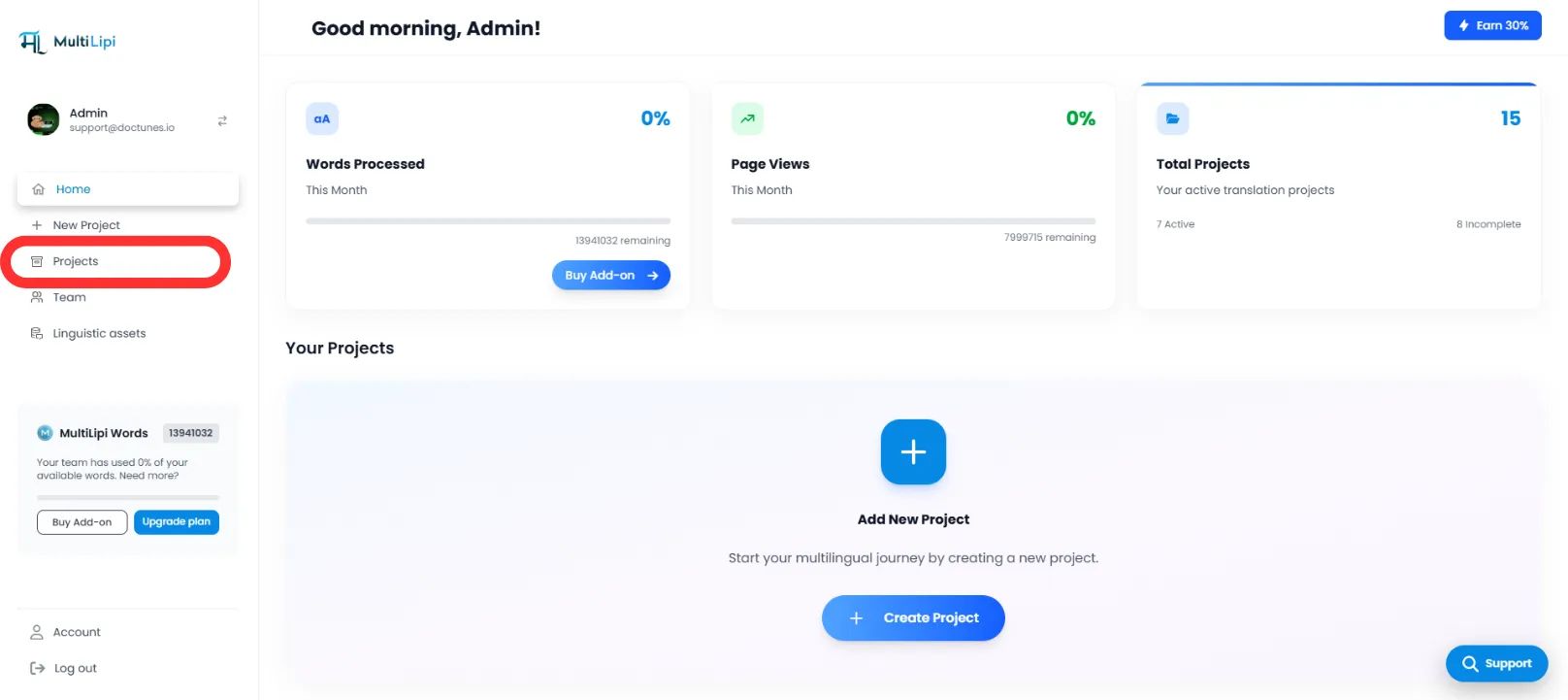
Step 1: Access Project Context
- •Log in to your MultiLipi Dashboard.
- •Navigate to the Projects section from the homepage.
- •Select the specific website project you wish to modify.
Step 2: Initialize Editor
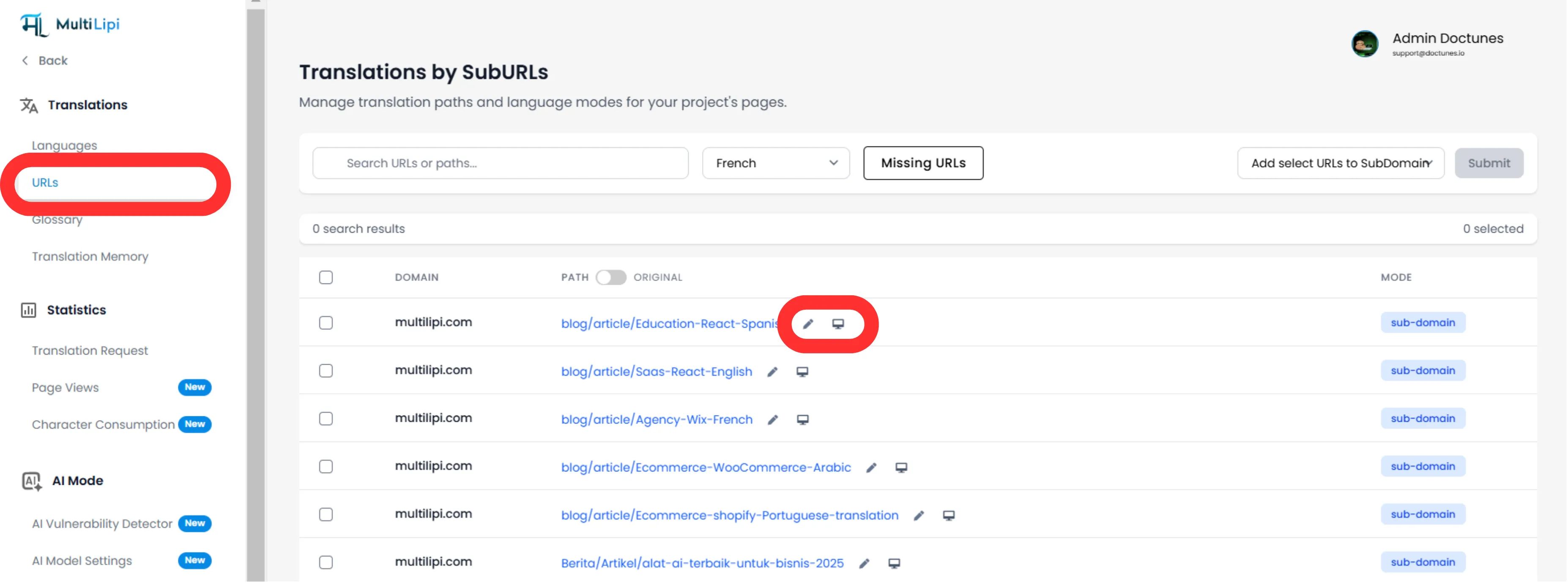
- •Navigate to the Translations tab.
- •Locate the specific page URL (e.g., /pricing) where the image resides.
- •Action: On the right-hand side, click the Virtual Editor button (or the 🖊️ icon).
- •System Action: This launches a live, editable preview of your website in a new window.
Step 3: Execute Asset Swap
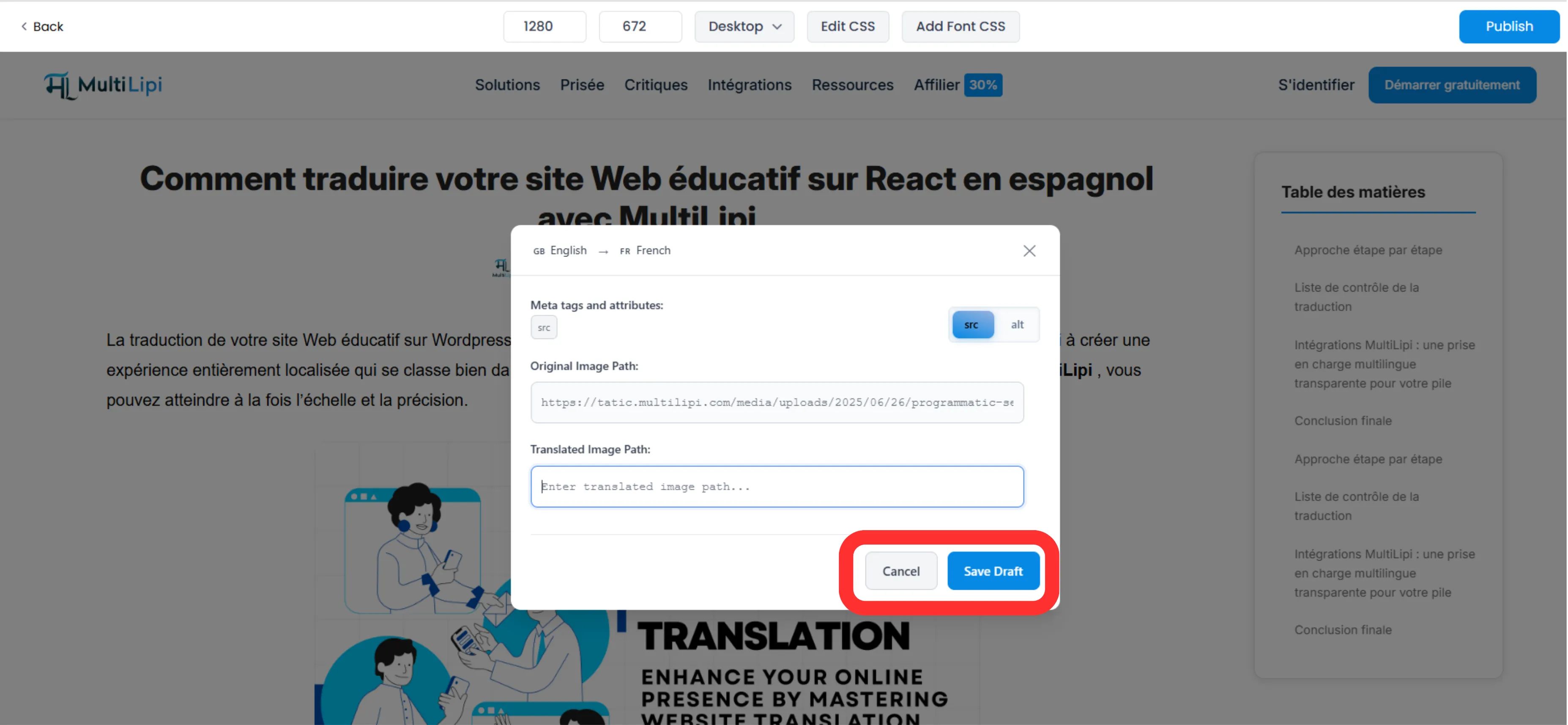
- •Select: In the live preview, click directly on the image you want to localize.
- •Configure: A pop-up modal will appear with two editable fields:
Translated Image src:
Paste the full URL of the new image file (hosted on your CDN/Server).
Translated alt tag:
Enter the translated description for accessibility and SEO.
- •Repeat: You can perform this action for every image element on the page.
Step 4: Commit Changes
Once the swap is configured, click Save Draft in the editor toolbar.
Result:
The change is saved. When a user visits the translated page, our engine dynamically swaps the HTML src attribute to load your new image.
2. Strategic Benefits
Why bother translating images?
Visual SEO: Search engines crawl alt text. If your Spanish page has English alt tags, you lose traffic. Localizing them helps you rank for Spanish image searches.
Conversion Rate: Users ignore banners they can't read. Translating embedded text in promotional images drastically improves click-through rates.
Accessibility: Screen readers rely on alt text. Localizing this ensures blind or visually impaired users in other countries can navigate your site effectively.
3. Best Practices
CDN Hosting: MultiLipi does not host your image files. You must upload your localized images (e.g., banner-fr.jpg) to your own server or media library (WordPress Media / Shopify Files) and copy that URL into the "Translated Image src" field.
Alt Text Length: Keep your translated alt text concise (under 100 characters) to maximize SEO impact without being flagged as "keyword stuffing".