

One of the most common issues with translating a website is that the native search bar breaks for international users.
Why does this happen? Most website search engines (like WordPress or Shopify native search) only index content in your website's original language. If your website was built in English, your database only understands English keywords.
Query Translation is a powerful MultiLipi feature that fixes this problem using a process called "Translate-Back".
How the "Translate-Back" Process Works
The intelligent middleman approach.
When you enable Query Translation, MultiLipi acts as an intelligent middleman between your foreign user and your original database. It takes the foreign word, translates it backward into your original language, and then searches your site.
Let's look at a real-world example:
Imagine your website is originally built in English, but you have used MultiLipi to translate it into French.
A French user visits your site and types "chaussures" (shoes) into your search bar. Your website's database looks for the exact French word "chaussures" in your English database. It finds zero matches, and the user gets a "No Results Found" page.
The French user types "chaussures". Right before the search is submitted, MultiLipi intercepts this query and translates it back into the English word "shoes". It submits "shoes" to your database, your website successfully finds all the products, and MultiLipi translates the final results page back into French for the user.
Important Limitations to Know
Technical constraints you should be aware of.
Because MultiLipi does not duplicate your actual website database, there are two important technical limitations to be aware of:
It Does Not Work with Auto-Complete
Query translation only triggers upon form validation. This means the user must press the "Enter" key or click the magnifying glass icon to submit the search. It will not translate live, drop-down auto-complete suggestions as the user is typing.
Synonym Mismatches
Machine translation isn't perfect. If a French user searches for "aimer", MultiLipi might translate it back to English as "love". But if your website content actually uses the word "like", the search will fail because "love" and "like" don't match.
Step-by-Step: How to Enable Query Translation
Takes less than a minute to set up.
Setting up Query Translation takes less than a minute. You just need to find your website's Search Parameter. This is the specific letter or word your website uses in its URL to process a search.
Step 1: Find your website's Search Parameter
- •Open a new tab and go to your live website.
- •Find your website's search bar and do a test search for any word (for example, type "test" and press enter).
- •Look at the URL at the top of your browser. You are looking for the letter or word that comes right after the
?and right before the=sign.
URL: yoursite.com/?s=test
Parameter: s
URL: yoursite.com/search?q=test
Parameter: q
Custom Sites: Look for words like query, search, or keyword.
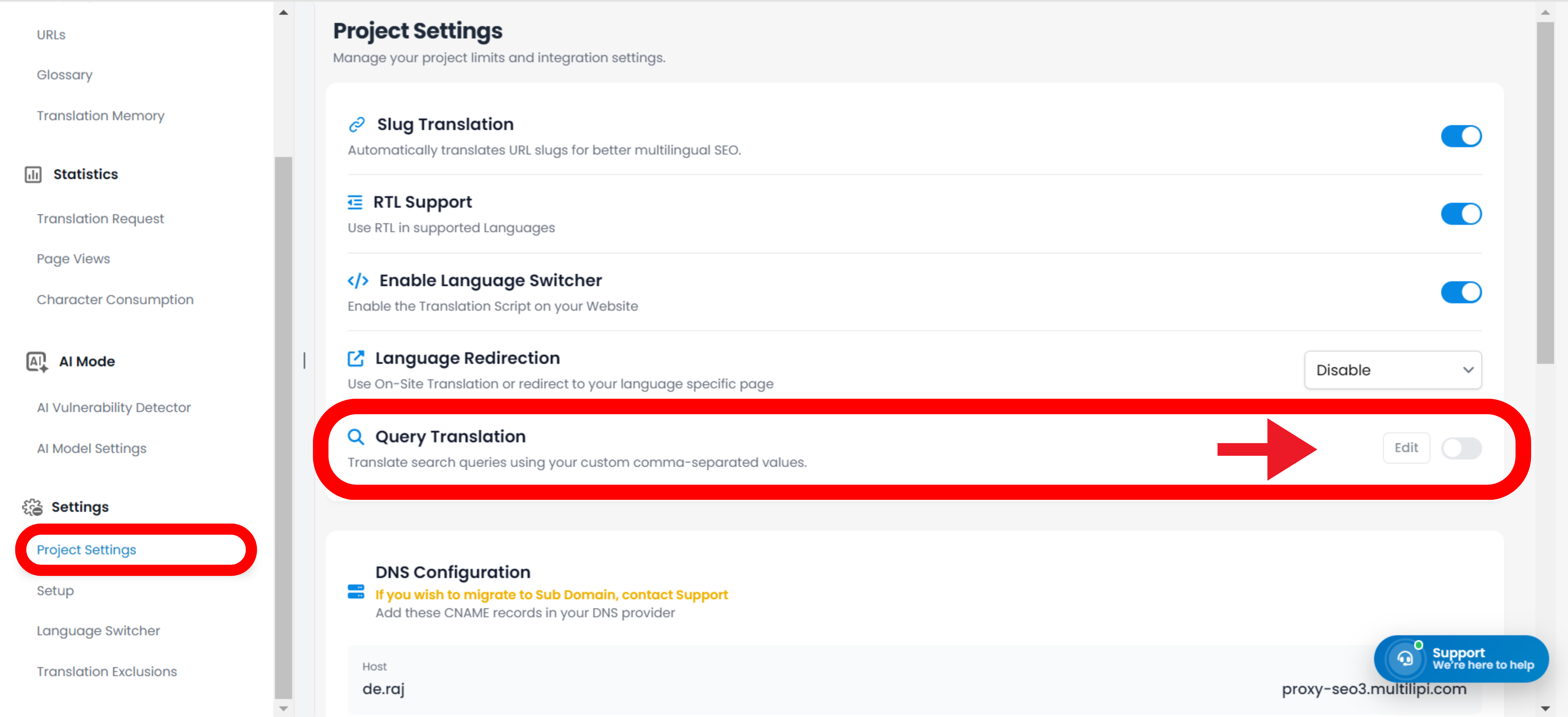
Step 2: Access your MultiLipi Project Settings
- •Log in to your MultiLipi Dashboard.
- •Select the specific website project you are working on.
- •On the left-hand menu, click on Settings, and then select Project Settings.
Step 3: Enable the Feature
- •Scroll down the page until you find the Search Translation section.
- •Toggle the switch to Enable.
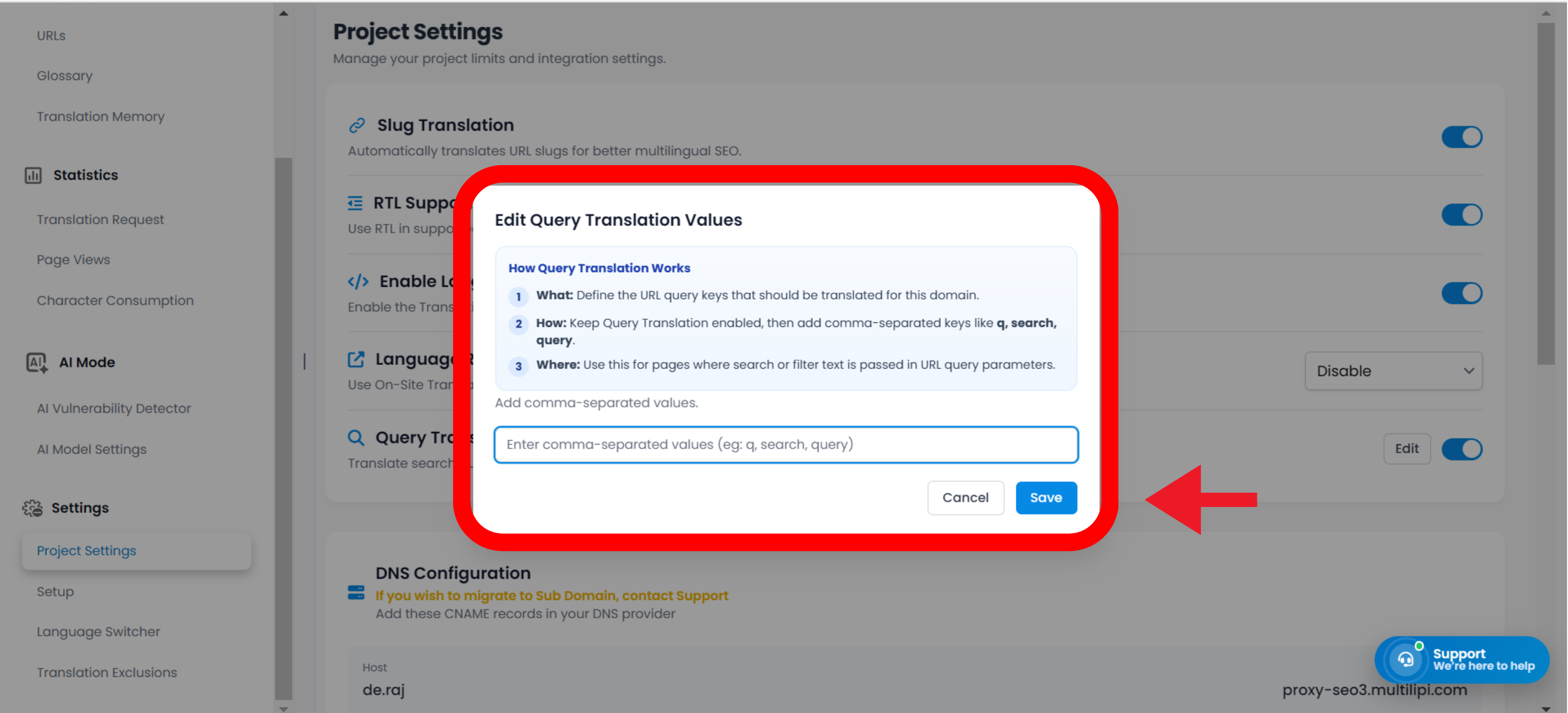
Step 4: Enter the Parameter and Save
- •A new text box labeled Search parameter will appear.
- •Type only the exact letter or word you found in Step 1 into this box. Do not include any symbols like
?or=. (For example, simply typesorq). - •Click the Save Changes button at the bottom of the page.
The Business Benefits: Why You Need This Feature
Impact on your bottom line.
Leaving your search bar broken in translated languages creates a massive friction point for your users. Enabling Query Translation immediately impacts your bottom line:
Boosts E-Commerce Sales
Shoppers cannot buy what they cannot find. If a Spanish user searches your Shopify store for "zapatos" but your database only knows "shoes," you lose that sale. Query translation bridges the gap, capturing high-intent international buyers.
Lowers Bounce Rates
Visitors who encounter a "0 Results Found" page are highly likely to leave your site immediately. Delivering accurate translated results keeps them engaged and browsing longer.
Reduces Support Tickets
For SaaS and service companies, an accessible Help Center is critical. When international users can successfully search for documentation in their own language, they are far less likely to email your customer support team.
Pro-Tip: How to Test Your Multilingual Search Setup
Verify everything is working perfectly.
Once you have saved your parameter in the dashboard, it is always a good idea to verify the connection is working perfectly.
- •Open an Incognito or Private Browsing window and navigate to your website.
- •Use your MultiLipi language switcher to change your site to a translated language (e.g., French).
- •Think of a common product or topic on your site, translate that word into French using Google Translate, and type it into your website's search bar.
- •Hit enter. You should see a populated page of results—all perfectly translated into French!
Troubleshooting note: If the page still says "No results," double-check that you did not accidentally include a typo, an = sign, or a ? mark in the parameter box in Step 4.