

The "Language Switcher" is the user's bridge to your localized infrastructure. MultiLipi supports two distinct injection methods to balance ease of deployment with design integrity. You can deploy it as a persistent Floating Overlay (best for rapid launch) or as a deeply integrated Embedded Element (best for custom design).
This guide details the navigation steps and technical differences between both strategies.
1. Configuration Protocol (Navigation)
Accessing the interface controls.
To configure the positioning strategy, follow this path in your command center:
Step 1: Access Dashboard
Log in to your MultiLipi account to reach the Home view.
Step 2: Select Project
Click on the specific Project Tile for the website you wish to configure.
Step 3: Access Settings
On the left-hand sidebar, click on Settings.
Step 4: Locate Module
From the sub-menu or settings list, select Language Switcher.
Action:
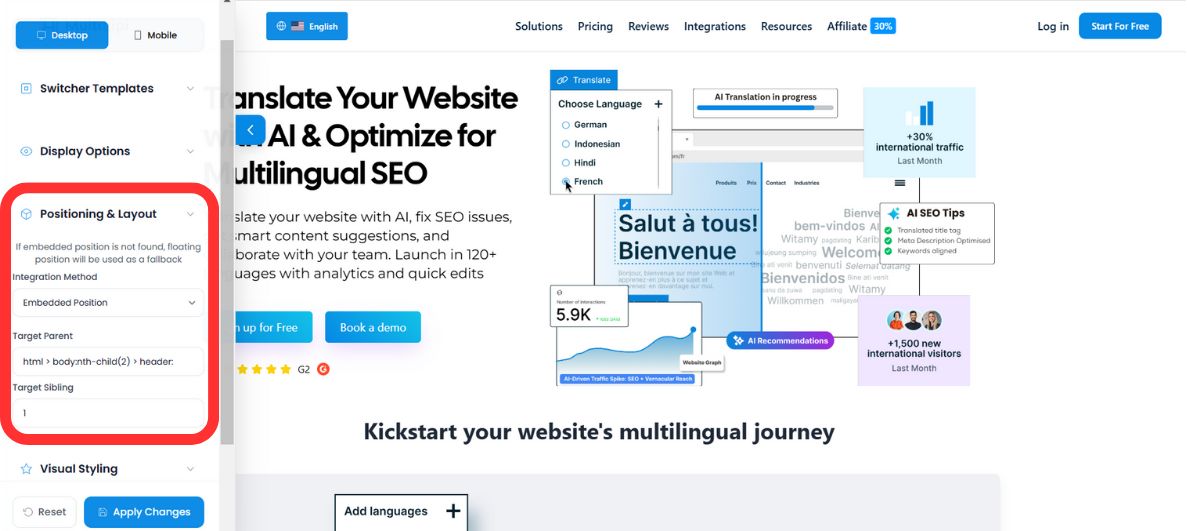
Here you will see the option to toggle between Floating and Embedded modes.
2. The Floating Switcher (Overlay Mode)
Rapid deployment via JS injection.
What is it?
The Floating Switcher is an autonomous widget injected into the DOM via JavaScript. It sits on the Z-axis above your website's content, anchored to a corner of the viewport.
Positioning: Configurable to any of the four quadrants:
- •Bottom-Left (Default) / Bottom-Right
- •Top-Left / Top-Right
Architectural Advantage:
- •Zero Code: No HTML editing required. It works instantly upon script injection.
- •Universal Compatibility: Guaranteed to render on any platform (WordPress, Shopify, Webflow) without breaking layout flows.
- •Mobile Responsive: Automatically scales and repositions for smaller viewports.
Ideal For: Teams who need a "Plug-and-Play" solution without involving a frontend developer.
3. The Embedded Switcher (Integration Mode)
Seamless DOM insertion.
What is it?
The Embedded Switcher allows you to inject the language toggle directly into a specific container within your HTML structure, such as your Navigation Bar (<nav>) or Footer.
The Mechanism: You provide a specific CSS Selector (ID or Class) in the MultiLipi dashboard.
Example Input: #menu-language-item or .navbar-right.
The Action: Our script scans the DOM for that specific selector and renders the switcher inside that element, inheriting the layout constraints of its parent.
Ideal For: Designers who require pixel-perfect control and want the switcher to feel like a native part of the UI menu system.
4. The Failover Protocol (Safety Logic)
Ensuring interface availability.
In dynamic web environments, IDs and Classes can change. What happens if you deploy an Embedded Switcher targeting #nav-lang, but your developer accidentally renames that ID to #nav-menu?
MultiLipi executes an Automatic Failover:
- •Scan: The script attempts to locate the target CSS selector.
- •Failure: If the target is not found (null), the script flags an error.
- •Recovery: It automatically reverts to Floating Mode.
- •Result: The switcher appears in the default floating position (e.g., Bottom-Right), ensuring the user can still change languages, even if the layout is broken.
- •Debugging: A console warning is logged for your developers to fix the selector.