
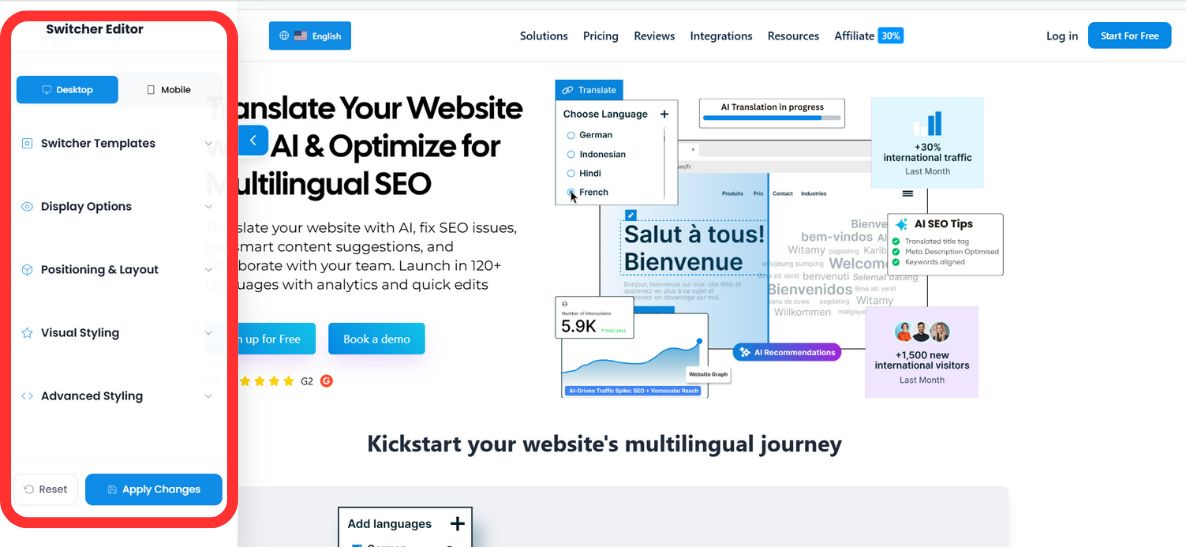
The language switcher is the primary navigation element for your international traffic. MultiLipi provides a dual-interface editor, allowing you to control the behavior and aesthetics of this element independently for Desktop and Mobile viewports.
This guide covers the configuration of Layouts, Positioning, and Brand Styling via the MultiLipi Command Center.
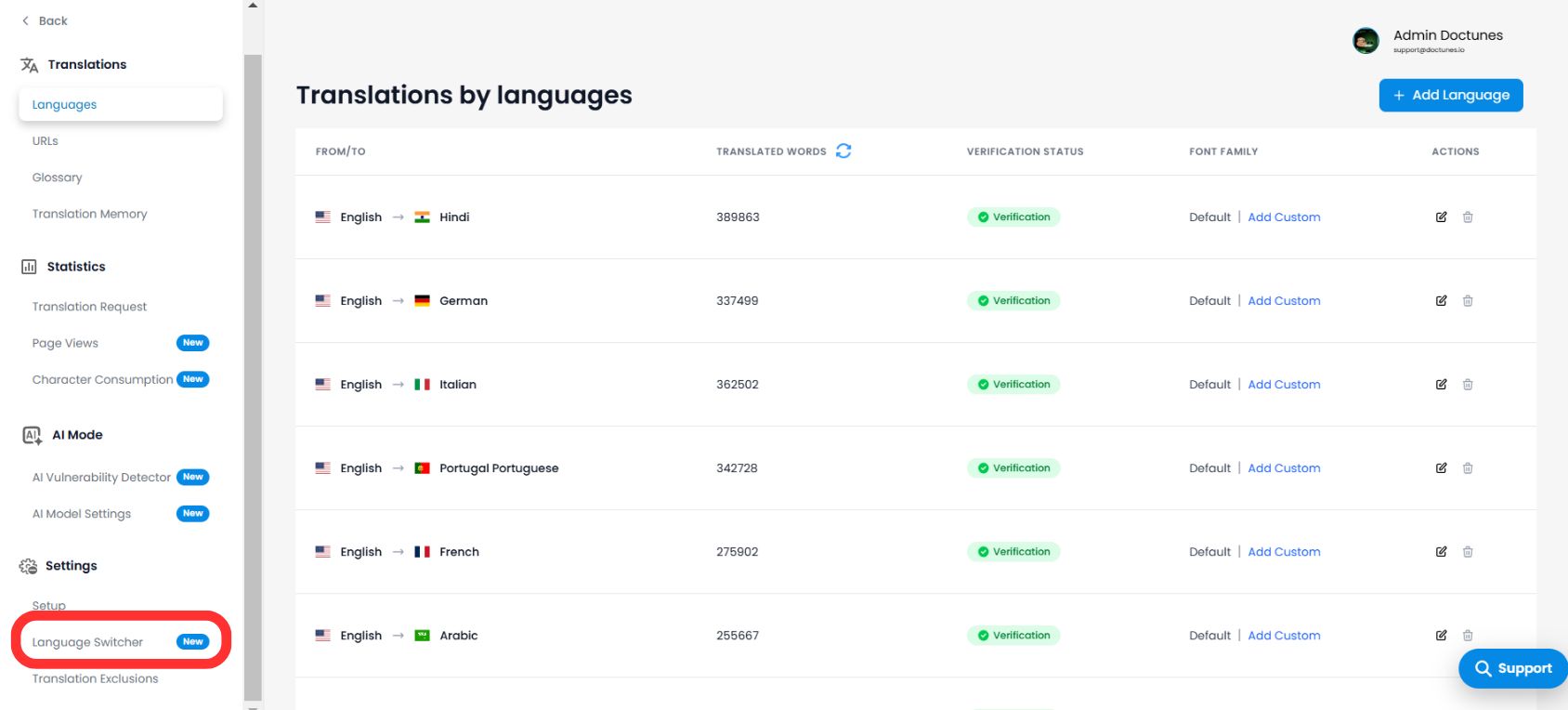
1. Accessing the Interface Editor
To begin customizing your frontend integration:
- 1Navigate to your MultiLipi Dashboard.
- 2Open Settings from the left-hand menu.
- 3Select Language Switcher.
💡 Pro Tip: You will enter the Switch Editor, which features a real-time preview canvas. Use the toggle at the top to switch between Desktop and Mobile views to ensure responsiveness across devices.
2. Step 1: Selecting the Architecture (Positioning)
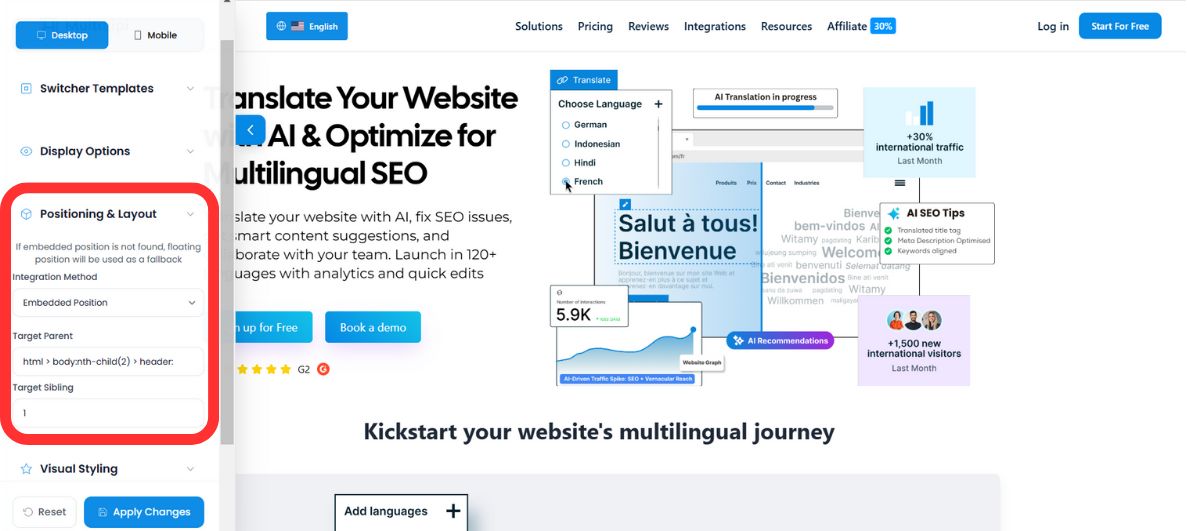
Define how the switcher behaves within your DOM. You have two deployment modes:
Mode A: Floating (Default)
Behavior: The switcher hovers over your content, anchored to a specific corner of the screen (e.g., Bottom-Right).
Use Case: Best for immediate visibility without altering your website's existing layout code.
Mode B: Embedded (Integrated)
Behavior: The switcher is injected into a specific HTML element you define (e.g., inside the Navigation Bar or Footer).
⚠️ The Fallback Protocol
If your specified HTML container cannot be found on a particular page, MultiLipi's Fallback Logic automatically reverts the switcher to "Floating Mode." This ensures users are never locked out of language selection, even if the layout changes.
3. Step 2: Visual Identity (Templates & Colors)
Align the switcher with your brand's Design System.
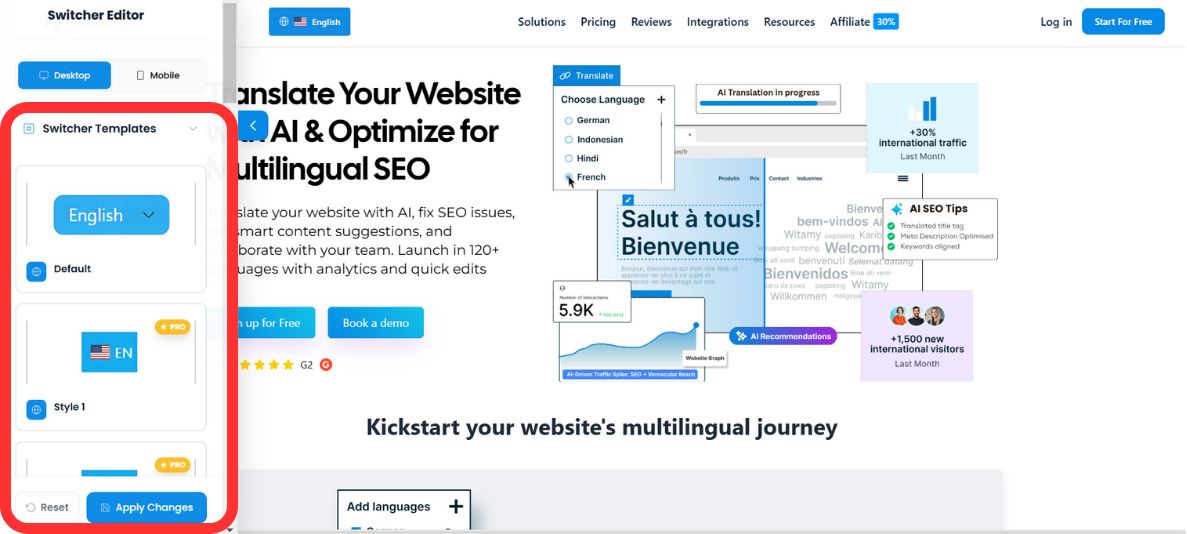
Template Selection
Choose from our library of pre-configured UI patterns to match your site's aesthetic:
Palette Integration
Override default styles to match your brand guidelines using the built-in Color Picker or raw RGB values:
- •Background Color: Match your navbar or button styles.
- •Text Color: Ensure high contrast for accessibility (WCAG compliance).
4. Step 3: Advanced Styling (Custom CSS)
For developers requiring pixel-perfect control, you can inject custom CSS rules directly into the widget's shadow DOM.
Common CSS Selectors:
#dynamicDropdown- Targets the main container of the dropdown list.#lang-switcher-selected-lang .fi- Targets the flag icon of the currently selected language.
Example Configuration:
/* Remove border radius for a sharp, square design */
#lang-switcher-selected-lang .fi {
  border-radius: 0px;
}

/* Customize the dropdown background */
#dynamicDropdown {
  background-color: #ffffff;
  box-shadow: 0 4px 12px rgba(0,0,0,0.1);
}
💎 Developer Note: Custom CSS allows you to override any visual property while maintaining the functional logic of the switcher. This is particularly useful for matching complex design systems or implementing dark mode variations.
5. Deployment & Verification
Once your configuration is complete:
Preview
Toggle between Desktop and Mobile modes in the editor to verify visual consistency.
Save
Click Save to push the changes to your live production site instantly.
Reset
If you need to start over, use the Reset function to revert to the default MultiLipi styles.
✅ Success: Your language switcher is now live! Changes propagate instantly across all pages where MultiLipi is deployed. No cache clearing or page refresh required for most configurations.