How to Enable or Disable the MultiLipi Translation Script on Your Website
 MultiLipi
•
Oct. 28, 2025
•
5 Min read
MultiLipi
•
Oct. 28, 2025
•
5 Min read
By default, MultiLipi automatically injects the translation script into your website to begin translating and indexing multilingual content. However, you have full control — you can enable or disable the script anytime from your dashboard.
This guide will walk you through:
- What the "Enable Script" toggle does
- Why you might want to disable it
- Step-by-step instructions to turn it on/off
What Does the "Enable Script" Setting Do?
The Enable Script setting in MultiLipi controls whether the translation JavaScript is injected into your website. When it's turned ON:
- Your site is automatically translated based on your language settings.
- Translations appear live to visitors.
- Page views, translation requests, and character consumption are tracked for analytics.
When turned OFF:
- The translation script will not be loaded.
- Visitors will only see your original language content.
- Your translation quota (page views or character usage) is not consumed.
Default Behavior: This toggle is enabled by default when you set up your project.
Why Would You Want to Disable It?
Here are a few reasons users choose to disable the translation script temporarily:
- You're doing a website redesign or staging environment testing.
- You only want to preview translations in the dashboard, not on the live site.
- You’ve hit your quota and want to pause translation until the next billing cycle.
- You're preparing for manual overrides before showing translated content publicly.
Where to Find the “Enable Script” Toggle
Follow these steps to access the Enable Script option:
- Login to your MultiLipi Dashboard.
- From the left-hand menu, go to Projects.
- Select the project/website for which you want to manage script settings.
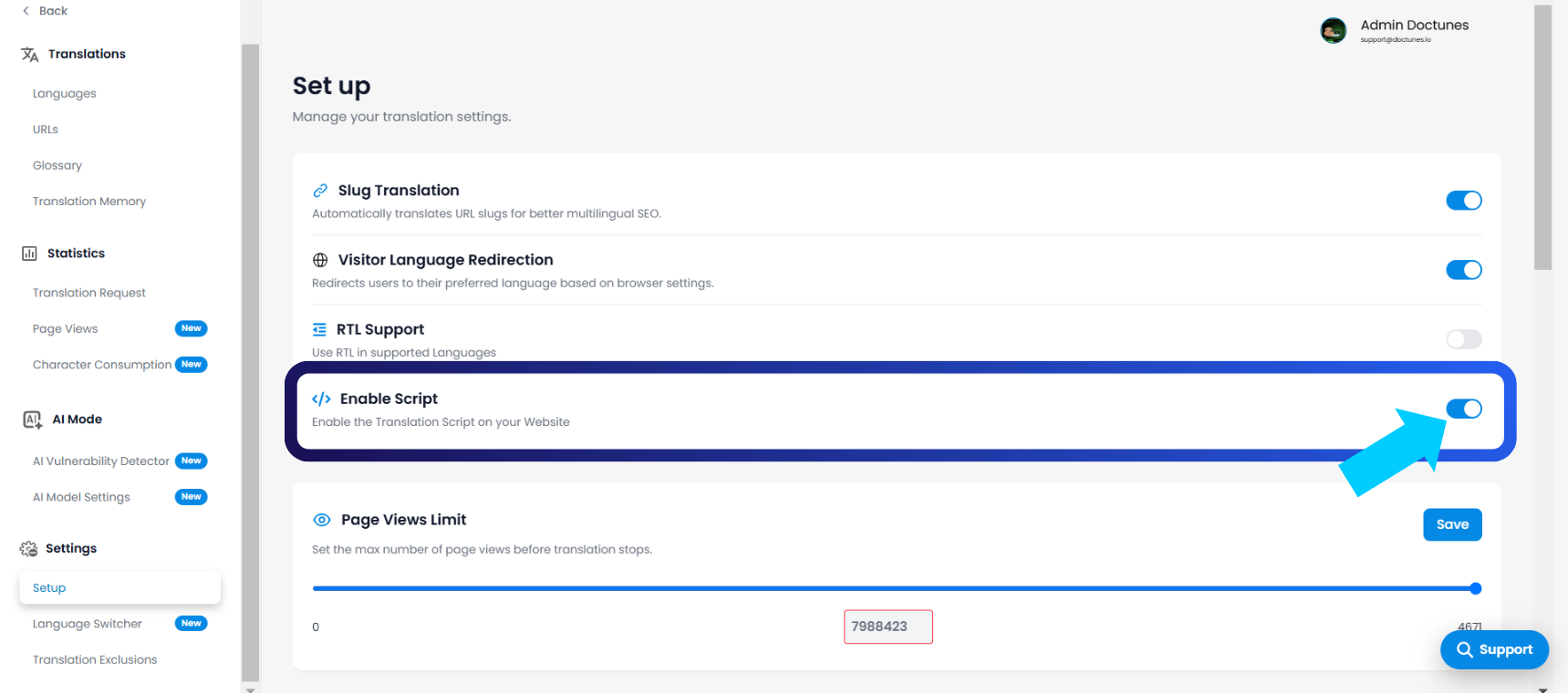
- In the left panel, under Settings, click on Setup.
- You’ll see the toggle labeled Enable Script.
- Flip the switch ON or OFF depending on your needs.
Important Notes
-
Disabling the script does not delete your translations. Your translations remain saved in the dashboard.
-
Once re-enabled, the script immediately begins showing translations again across your website.
- This toggle is website-specific — each project can have a different script setting.
Pro Tip
If you're using MultiLipi on a custom deployment (e.g., via proxy or manual integration), disabling this script can be useful to avoid double injection
Comments